![Diane Poremsky [Outlook MVP]](http://www.outlook-tips.net/images/2014/MVP_BlueOnly.png)
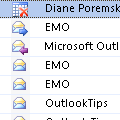
It happened to all of us at least once or twice: we accidently mark all messages as read, rather than just one. Unfortunately there isn't an 'undo' command. The Modified date field is not affected either, so it’s mostly impossible to know which messages were marked read.You can sort by the icon column and mark all opened (but not forwarded or replied) messages as unread. … [Read more...] about Tip 569: Oops, Marked all as Read
Tip 568: Filter File Types
An Outlook user wants to know if he can add more file types to the All Files (*.*) filter. This is not possible, but you don’t need to add more file extensions to the list to filter by extensions. You just need to type the extension in the file name field and press enter to filter the list. For example, if you want to see only PDF files, type *.pdf and press Enter. You can … [Read more...] about Tip 568: Filter File Types
Tip 567: Add Comments to Email

If you use Outlook 2007, you can add comments to an HTML or RTF email, using the same Reviewer comment used with Word. (It doesn’t work with plain text. Outlook 2010 or Outlook 2013.)You need to be in Edit mode (Other Actions button, Edit message) then select a word or phrase and Ctrl+Alt+M to insert a comment.If you reply to the message after inserting the comment, it … [Read more...] about Tip 567: Add Comments to Email
Tip 566: View BCC
When you send a message BCC, you can review the names of the people you sent it to by opening the message. Other options are creating a custom view that contains the BCC field or using Actions, Resend message. … [Read more...] about Tip 566: View BCC
Tip 565: Edit the Subject
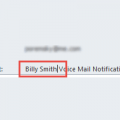
An Outlook user wanted to know how to identify emailed voice messages and faxes with the person who left the message or sent the fax. The voice mail and fax servers send them from a generic address and he wants to make it easier to see who they are really from. While he could link Contacts to the messages, it’s not very visible.My suggestion is to type the sender name in … [Read more...] about Tip 565: Edit the Subject