• Skip to main content
  • Skip to primary sidebar
  • Skip to footer

Outlook Tips

Learning Microsoft Outlook One Tip At A Time

Diane Poremsky [Outlook MVP]

  • Home
  • Tips Archive
  • How to...
  • Beginner
  • Outlook.com

Use existing data file as the delivery location

Outlook 2003 and older

The steps and screenshots for Outlook 2003 and older are pretty much the same, with just minor differences.

To use your existing personal data store with your new profile:

If you just created your profile and have the Profile dialog open, skip to Step 3 after clicking Finish in the profile wizard.

  1. Open Control Panel and find the Mail applet. If you use the Category view in Windows XP's Control Panel, look for the Mail applet in the User Accounts category.
  2. Select the Show Profiles button.
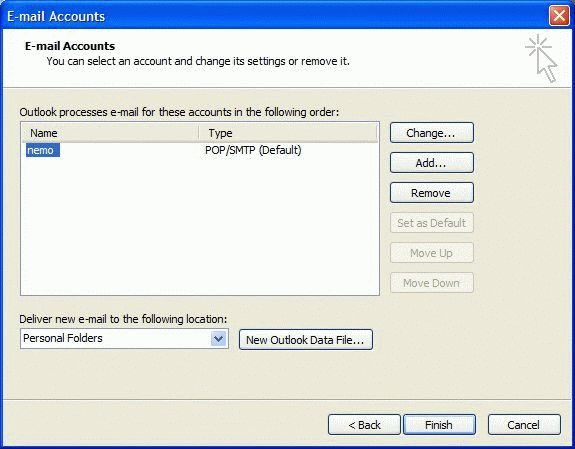
  3. Select your new profile from the Mail dialog and choose Properties, then Email Accounts and finally, View or change email accounts.
  4. Account Settings dialog in Outlook 2003 and older

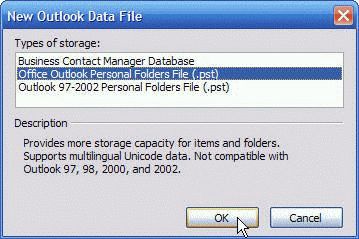
  5. Click the New Outlook data file button near the bottom of the dialog.Even though this dialog appears to be only for creating new personal data stores (PST) you can use it to browse for an existing PST.
  6. Click Ok on the New Outlook Data File menu, leaving the default selection selected.Tip: If you are going to create a new PST in Outlook 2003 and need to use it with older versions of Outlook, select Outlook 97/2002 format, otherwise, use the default PST format that is selected.
  7. Select the data file format

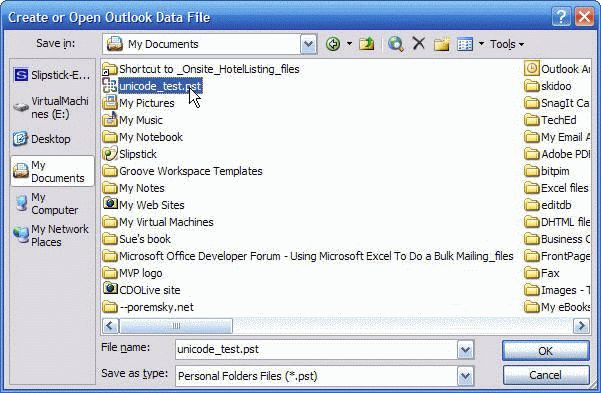
  8. Browse to find your existing PST and select it, then press OK to add it to the profile. 
  9. Select your existing data file

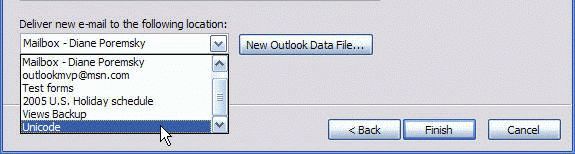
  10. To set your existing PST as the default delivery location, Ok your way back to the Email Accounts dialog and select the PST you just added in the Deliver new e-mail to the following location dropdown. Then press Finish. If Outlook is open, when you press Finish you'll be reminded that this won't take effect until you close and reopen Outlook.
  11. Set the data file as default for delivery

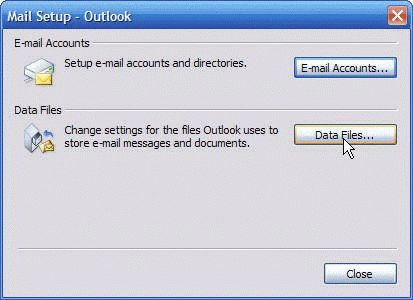
  12. To remove the PST from your profile, when you return to the Mail Setup dialog, choose Data Files. Tip: If you have mail in the pst you want to remove you can use File, Import. Because you probably don't have any custom views in this pst, Importing the contents works fine.
    If you decide to leave it in the profile, you can right click on it in Outlook's folder list and choose Close to remove it later or return to this screen at any time and remove the data store.
  13. Control panel Mail dialog

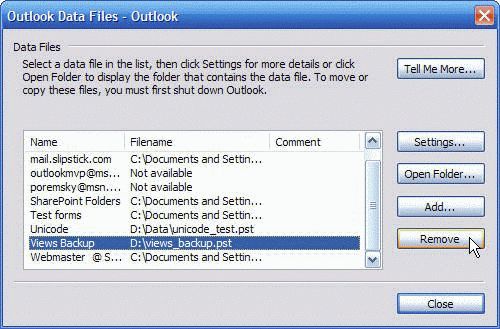
  14. Select the data store you wish to remove from your profile and click Remove.The data store is removed from your profile, but not deleted from your hard disk.
Select datafile to remove from profile

Published May 15, 2011. Last updated on May 5, 2017.

Share this:

  • Twitter
  • Facebook
  • LinkedIn
  • More
  • Print
  • Tumblr
  • Reddit
  • Pocket
  • Pinterest

Related posts:

Show ProfilesCreate a New Outlook Profile A popular query goes something like this: "I recently installed Outlook and when I open it, it says it can't connect to ETip 225: Can't Connect to Exchange Server? Outlook: Frequently Asked Questions open an outlook data fileOpen an existing personal data file (*.pst) in Outlook
Pages: Page 1 Page 2
Subscribe
Notify of
2 Comments
Newest
Oldest Most Voted
Inline Feedbacks
View all comments

Primary Sidebar

Search OutlookTips

Training and one-on-one assistance

Do you need help setting up Outlook or want some one-on-one training? I'm available for hire. See Training and one-on-one assistance for fees and to check availability.

All-Time Most Popular Posts

  • Windows 7 and Vista Start Search field
    How to start Outlook in safe mode
  • outlook.com icon
    Delete a message stuck in Outlook's Outbox
  • How to use Outlook's Command line switches
  • Use Cleanviews switch to reset all views
    How to Reset the View on Outlook folders
  • Where are my Outlook Files?
  • Folder paths
    How to Find Folder Paths in Outlook Mailboxes
  • How to use Scanpst.exe to repair Outlook data files
  • Outlook's Missing Holidays
  • backstage page
    Where is File tab in Outlook?
  • Icons found in the Inbox, Message Headers, and Toolbars

Footer

Recent Posts

  • Log into multiple Outlook on the web accounts
  • Keeping Hackers out of Microsoft accounts
  • Microsoft Account Closure Email
  • Outlook on the web Quick Actions moved to the right
  • Automatically sign out of Outlook.com

Recent Bug List

Microsoft keeps a running list of issues affecting recently released updates at Fixes or workarounds for recent issues in Outlook for Windows.

Office Update History

Update history for supported Office versions is at Update history for Office

Resources

Ask questions and share your knowledge in Outlook Forums.

You Might Like

Where is File tab in Outlook?
Using Two-factor authentication
Where are my Outlook Files?
How to use Outlook's Command line switches

© 2003–2026 ยท Outlook Tips

wpDiscuz
You are going to send email to

Move Comment