![Diane Poremsky [Outlook MVP]](http://www.outlook-tips.net/images/2014/MVP_BlueOnly.png)
I’ve attempted several times to import my address list without any success. Outlook will import the names, but not the email addresses.
That the addresses aren't importing but the names are tells me that Outlook didn't import the addresses because the field names in your CSV don't match with the field names in Outlook.
When Outlook imports, the fields names in your file need to match Outlook’s field names. If it can't match the fields, it won’t import them. In most cases, if the field names aren't the same as Outlook uses, you need to tell Outlook which fields to match.
Open the CSV file in Notepad or Excel and look at the field names at the top of the file. It's a sure bet that your file does not use ‘E-mail Address’ for the email address field.
You have two choices: change the field names in the CSV so they match Outlook's (a list of Outlook field names is at the end) or map your field name to the corresponding field name in Outlook.
When you import Excel files (.xls), you need to use named ranges. If a field or record falls outside of the named range, it won’t import. I recommend using CSV files so you don’t have to mess with named ranges.
Map Custom Field Names
Open the Import and Export wizard. In Outlook 2013, go to File, Open & Export, Import/Export. In Outlook 2010, It's File, Open, Open and Import. In Outlook 2007 and older, look for Import/Export on the File menu.
Once you get into the Import/Export wizard, the screens look the same for all versions of Outlook.
Step through the Import/Export wizard. On the last page, before clicking Finish, click the Map Custom Fields button.
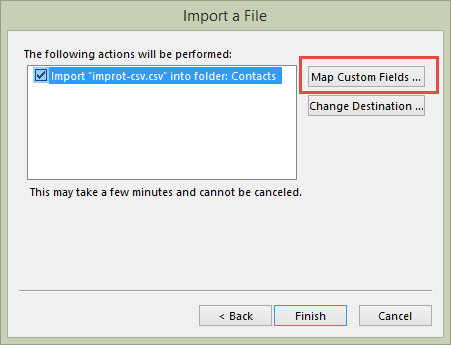
In the Map Custom Fields dialog, check the field names on the right. In this screenshot, Company, Department, and Job Title fields are correctly mapped.
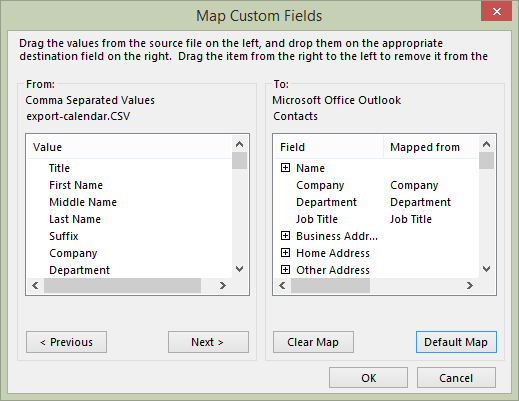
If a field should have a match in your CSV file but the Mapped From column on the right is blank, locate the field name that your field uses (on the left) and drag it to the Outlook field name on the right. Drop it on the highlighted Outlook field name.
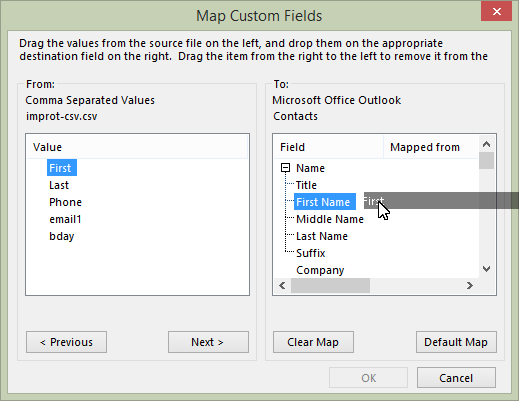
When you are done linking the field names, click Ok then click Finish to complete the Import.
Map Custom Fields Video Tutorial
Outlook Field Names
Note: this are the field names Outlook exports. Not all of the fields may be available to import.
Name and Email fields
Title, First Name, Middle Name, Last Name, Suffix, E-mail Address, E-mail Type, E-mail Display Name, E-mail 2 Address, E-mail 2 Type, E-mail 2 Display Name, E-mail 3 Address, E-mail 3 Type, E-mail 3 Display Name
Company fields
Company, Department, Job Title, Assistant's Name, Business Street, Business Street 2, Business Address PO Box, Business Street 3, Business City, Business State, Business Postal Code, Business Country/Region, Billing Information, Manager's Name, Mileage, Directory Server, Organizational ID Number, Office Location, Government ID Number
Home & Other address fields
Home Street, Home Street 2, Home Street 3, Home Address PO Box, Home City, Home State, Home Postal Code, Home Country/Region
Other Street, Other Street 2, Other Street 3, Other Address PO Box, Other City, Other State, Other Postal Code, Other Country/Region, Profession, Referred By
Phone number fields
Assistant's Phone, Business Fax, Business Phone, Business Phone 2, Callback, Car Phone, Company Main Phone, Home Fax, Home Phone, Home Phone 2, ISDN, Mobile Phone, Other Fax, Other Phone, Pager, Primary Phone, Radio Phone, TTY/TDD Phone, Telex
Miscellaneous fields
Account, Anniversary, Birthday, Spouse, Children, Gender, Hobby, Initials, Categories, Internet Free Busy, Keywords, Language, Location, Notes, Priority, Private, Sensitivity, User 1, User 2, User 3, User 4, Web Page
Published August 5, 2014. Last updated on August 5, 2014.