![Diane Poremsky [Outlook MVP]](http://www.outlook-tips.net/images/2014/MVP_BlueOnly.png)
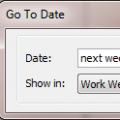
You can move around the calendar easily using Outlook's Go To Date Feature. Open Go To Date using Ctrl+G, from the Go menu or by right clicking on the Day/Week/Month Calendar and choosing Go To Date. Enter the date and the calendar format you want to view it in - one day, work week, week or month.Like many of Outlook's date fields, Go To Date accepts shortcuts including … [Read more...] about Tip 48: Go To Date
Tips Archive
Tip 47: Merging Calendar Folders
If you have two or more calendar folders which you need to combine into one, move the items, instead of using Import. If necessary, open the message stores using File, Open, Outlook Data file, then switch to the By Category view and select the appointment and events then right-click and choose Move to folder. You could also select and drag to the other folder or right-click … [Read more...] about Tip 47: Merging Calendar Folders
Tip 46: Outlook's Command Line Switches
Outlook supports a number of command line switches, including switches you can use to open Outlook to a specific folder, send email using a specific form, and several troubleshooting switches. To use the switches, open the Start menu, Run command and enter the command line in this format: Outlook.exe /select outlook:calendar If you receive errors, use the full … [Read more...] about Tip 46: Outlook's Command Line Switches
Tip 45: Send Attachments From Windows
When you send an attachment by right clicking on it and choosing Send, newer versions of Windows add a block of text to the message body. The text is added by the sendmail.dll and varies with your version of Windows, the same file that is used by Internet Explorer to add an attachment as a shortcut instead of a text link. Unfortunately, you can't remove this message text. To … [Read more...] about Tip 45: Send Attachments From Windows
Tip 43: Save Changes to Attachments
This tip applies to Outlook 2007 and older. The procedure is slightly different in Outlook 2010. See Editing Attachments in Outlook 2010 for instructions specific to Outlook 2010.When you open an email attachment and want to save changes to the attached file, open the message, then the attachment. When you are finished editing it, close the attachment and choose Yes to … [Read more...] about Tip 43: Save Changes to Attachments