![Diane Poremsky [Outlook MVP]](http://www.outlook-tips.net/images/2014/MVP_BlueOnly.png)
Are you losing too much 'good' e-mail because it's lost in the spam in your inbox? Create a filter moving all e-mail NOT from people in your address book to a different folder.Outlook 2002 and up have rules conditions for "sender is in specified address book". Create a rule using this condition to move messages to a new folder or use it as an exception to a rule which moves … [Read more...] about Tip 24: Using Rules Wizard
Tips Archive
Tip 22: Using Word Editor
In order to use Word as your e-mail editor or use the "Office envelope" feature in any Office application, you need to use the same version of Outlook and Office. If you upgrade Outlook without also upgrading Office, you'll lose these features. Not sure what the Office envelope is? When you are working in Word, Excel or other Office applications that support it and click on … [Read more...] about Tip 22: Using Word Editor
Tip 21: Using Safe Lists
Outlook 2003 includes a junk e-mail filter and a safe list which allows all entries in your address book to bypass the junk filter. Each address is parsed into a registry key, where the junk filter reads the addresses. If you have a lot of addresses or only want to allow some of your contact's to be on the safe list, you can add their addresses to the safe list by right … [Read more...] about Tip 21: Using Safe Lists
Tip 20: Check Names
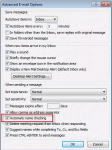
When you disable name checking (autoresolution) in File, Options, Mail, Outlook will still resolve the names, but not immediately.You'll need to press Ctrl+K to force autoresolution at any time before sending the message; otherwise Outlook will always resolve the address when you send the message. If a match isn't found, you'll be asked to pick names using the Check Names … [Read more...] about Tip 20: Check Names
Tip 19: Resolving Addresses
When you have multiple address lists, you can control the order Outlook searches them. This is important, since Outlook stops searching additional address lists once it finds a match (or matches) in an address list. Open the Address book's Tools, Options dialog. Change the order Outlook uses to check names in the bottom field. Use this dialog to change the address list shown … [Read more...] about Tip 19: Resolving Addresses