![Diane Poremsky [Outlook MVP]](http://www.outlook-tips.net/images/2014/MVP_BlueOnly.png)
An Outlook user asked how to add a background image to a new appointment. Outlook doesn’t have a command to do this directly, but it is possible using one of two methods. 1. Create a message with a background image, Select All and paste into the appointment body. 2. Use an HTML editor to create a page with a background image and use Insert HTML as text. This method works … [Read more...] about Tip 668: Background images
Tips Archive
Tip 666: Combine Calendars
A surprising number of people ask how to combine multiple calendars into one. It’s actually easy – just drag and drop appointments from one to the other, but not from the Day/Week/Month view. That view just complicates things. Switch to a table (list) view, such as All Appointments or By Categories. Then select all and drag to the desired folder. (Or use the Move to folder … [Read more...] about Tip 666: Combine Calendars
Tip 665: Exclude Dictionary
Today's tip is a repeat – it last ran about 5 years ago and two recent questions about excluding words from the spell checker tells me it’s long past time to remind people about this little known feature. Many people are unaware that the Office spell-check offers an "exclude dictionary" you can use when the dictionary contains words that you want to be flagged as misspelled. … [Read more...] about Tip 665: Exclude Dictionary
Tip 664: Lock views
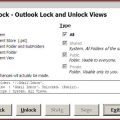
It’s very easy to accidentally change a customized view and a popular request is the ability to lock the views to prevent this. Unfortunately locking views is not possible. The best way to protect your view is by making a copy. When the copy gets messed up, delete it and make a new copy. Update: Outlook 2010's Object Model supports locking views. See View.LockUserChanges … [Read more...] about Tip 664: Lock views
Tip 663: Error in the To-Do Bar
We’re getting a lot of reports of errors in the To-do Bar’s tasks list: "The operation failed. An object could not be found." The fix is to close Outlook and restart it using the /resettodobar switch. At Start menu, Run (Windows Key + R) type Outlook.exe /resettodobar See https://www.outlook-tips.net/beginner/switches.htm for help using … [Read more...] about Tip 663: Error in the To-Do Bar