• Skip to main content
  • Skip to primary sidebar
  • Skip to footer

Outlook Tips

Learning Microsoft Outlook One Tip At A Time

Diane Poremsky [Outlook MVP]

  • Home
  • Tips Archive
  • How to...
  • Beginner
  • Outlook.com

Tip 1000: Using Rules Wizard for Internal Exchange Email

I was thinking about doing a contest or something special involving prizes to celebrate my 1000th post, but I only got as far as the thinking part… it's hard to believe I've been doing this 9 years now (as of July 14). Yes, I can do the math: 9 years x 52 weeks x 3 tips per week is a lot more than 1000 but I took some weeks off and was a slacker the rest of the time.

Now back to our regularly scheduled tip…

Today's tip is for users with accounts on Exchange server.

It's difficult to use rules on email sent by co-workers. You can make individual rules by selecting a name from the GAL, but when you try to create a rule that applies to everyone within your organization, you discover it doesn't work. This is because Exchange doesn't use SMTP addresses for internal email, it uses x.500 addresses, which look something like this:

/o=organization/ou=Exchange Administrative Group (FYDIBOHF23SPDLT)/cn=Recipients/cn=alias

Like SMTP addresses, you can use a snippet of the x.500 string in a rule.

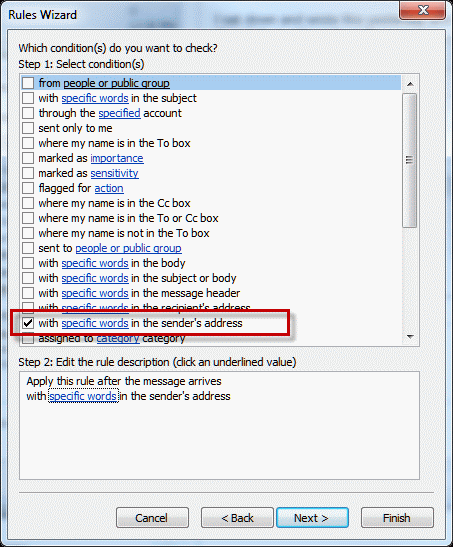
When you are creating the rule, enter /o or another unique part of your Exchange address as the condition in the With words in the sender's address. In highly organized corporations, where each business group has their own organizational unit, you can limit the rule to just users within a group, by using /ou=group-name
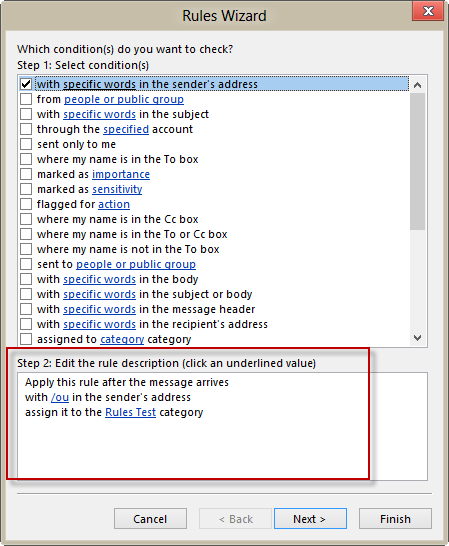
Filter messages sent by coworkers

You can use this same technique in the filter dialog used by custom views, search folders, and automatic formatting.

Published June 21, 2012. Last updated on June 23, 2012.
Share this:

  • Twitter
  • Facebook
  • LinkedIn
  • More
  • Print
  • Tumblr
  • Reddit
  • Pocket
  • Pinterest

Related posts:

Tip 24: Using Rules Wizard Creating rules that apply to an entire domain Do you have a need for a text file containing a list of the rules assigned to your Outlook 2007 or Outlook 2010 default email accoTip 945: Print a list of your Outlook Rules Tip 42: Stop Processing More Rules
Subscribe
Notify of
2 Comments
Newest
Oldest Most Voted
Inline Feedbacks
View all comments

Primary Sidebar

Search OutlookTips

Training and one-on-one assistance

Do you need help setting up Outlook or want some one-on-one training? I'm available for hire. See Training and one-on-one assistance for fees and to check availability.

All-Time Most Popular Posts

  • Windows 7 and Vista Start Search field
    How to start Outlook in safe mode
  • outlook.com icon
    Delete a message stuck in Outlook's Outbox
  • How to use Outlook's Command line switches
  • Use Cleanviews switch to reset all views
    How to Reset the View on Outlook folders
  • Where are my Outlook Files?
  • Folder paths
    How to Find Folder Paths in Outlook Mailboxes
  • How to use Scanpst.exe to repair Outlook data files
  • Outlook's Missing Holidays
  • backstage page
    Where is File tab in Outlook?
  • Icons found in the Inbox, Message Headers, and Toolbars

Footer

Recent Posts

  • Log into multiple Outlook on the web accounts
  • Keeping Hackers out of Microsoft accounts
  • Microsoft Account Closure Email
  • Outlook on the web Quick Actions moved to the right
  • Automatically sign out of Outlook.com

Recent Bug List

Microsoft keeps a running list of issues affecting recently released updates at Fixes or workarounds for recent issues in Outlook for Windows.

Office Update History

Update history for supported Office versions is at Update history for Office

Resources

Ask questions and share your knowledge in Outlook Forums.

You Might Like

Where is File tab in Outlook?
Using Two-factor authentication
Where are my Outlook Files?
How to use Outlook's Command line switches

© 2003–2025 ยท Outlook Tips

wpDiscuz
You are going to send email to

Move Comment