• Skip to main content
  • Skip to primary sidebar
  • Skip to footer

Outlook Tips

Learning Microsoft Outlook One Tip At A Time

Diane Poremsky [Outlook MVP]

  • Home
  • Tips Archive
  • How to...
  • Beginner
  • Outlook.com

Tip 970: Disabling Tool Tips on Outlook's Messages

This is one of those tips I need to repeat about every two years…

Can I disable the tool tips that come up while hovering over messages and folders in Outlook 2010? Maybe increase the amount of time the mouse hovers over a message before a tool tip displays? They are very distracting and are slowly driving me insane.

Outlook drives us all a little insane…

No, sorry, the popups (ScreenTips) you see when you hover over messages (in any version of Outlook) in the message list cannot be disabled or the hover time adjusted. You can reduce the size of the ScreenTip by removing fields, but can't eliminate it completely.
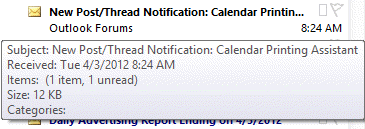
large message list popup

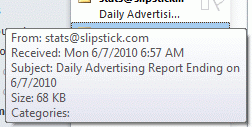
For the following screenshot, I removed all fields from the view, except the Subject, From, and Received Date fields. Although I did not widen the message list, removing fields allowed the full subject to display. Turning off "Show in Conversations" would eliminate the Item count line in both screenshots.
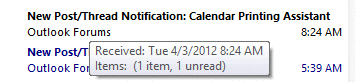
Smallest tooltip in the message list

To keep fields and have a smaller popup, you need to increase the width of the message list.

Other popups, screen tips, or tool tips in Outlook come up when you hover over folders in the Navigation pane. Like the message list popups, this only comes up when the navigation pane is narrow. If it's wide enough to show the full folder name, the ScreenTips won't popup.

The ScreenTips that come up when you hover over ribbon and toolbar buttons can be disabled. In Outlook 2010, go to File, Options, General tab and in earlier versions, those tips are disabled in Views, Customize, Toolbars. (In Outlook 2007, check both places.)

One solution offered on forums was either not tested by the people submitting the solution or the submitters did not understand which ScreenTip was described by the question.

Disabling popups in Windows Explorer's Folder Options (on the View tab) does not affect Outlook's ScreenTips.

The registry edit that changes ShowInfoTip value to 0 will not work either, as it's the key that the Folder Options, View tab, Show Popups… controls. This setting applies to the ScreenTips that come up when you hover over file names in Windows Explorer, not Outlook.

Published April 3, 2012. Last updated on April 3, 2012.
Share this:

  • Twitter
  • Facebook
  • LinkedIn
  • More
  • Print
  • Tumblr
  • Reddit
  • Pocket
  • Pinterest

Related posts:

Tip 886: Saving Forwarded Messages in Outlook Tip 894: Changing Folder and Message List Fonts Tip 863: Duplicate Sent Messages in Outlook 2010 Tool tips in OutlookTip 749: Disabling Outlook's Tooltips and Popups
Subscribe
Notify of
0 Comments
Newest
Oldest Most Voted
Inline Feedbacks
View all comments

Primary Sidebar

Search OutlookTips

Training and one-on-one assistance

Do you need help setting up Outlook or want some one-on-one training? I'm available for hire. See Training and one-on-one assistance for fees and to check availability.

All-Time Most Popular Posts

  • Windows 7 and Vista Start Search field
    How to start Outlook in safe mode
  • outlook.com icon
    Delete a message stuck in Outlook's Outbox
  • How to use Outlook's Command line switches
  • Use Cleanviews switch to reset all views
    How to Reset the View on Outlook folders
  • Where are my Outlook Files?
  • Folder paths
    How to Find Folder Paths in Outlook Mailboxes
  • How to use Scanpst.exe to repair Outlook data files
  • Outlook's Missing Holidays
  • backstage page
    Where is File tab in Outlook?
  • Icons found in the Inbox, Message Headers, and Toolbars

Footer

Recent Posts

  • Log into multiple Outlook on the web accounts
  • Keeping Hackers out of Microsoft accounts
  • Microsoft Account Closure Email
  • Outlook on the web Quick Actions moved to the right
  • Automatically sign out of Outlook.com

Recent Bug List

Microsoft keeps a running list of issues affecting recently released updates at Fixes or workarounds for recent issues in Outlook for Windows.

Office Update History

Update history for supported Office versions is at Update history for Office

Resources

Ask questions and share your knowledge in Outlook Forums.

You Might Like

Where is File tab in Outlook?
Using Two-factor authentication
Where are my Outlook Files?
How to use Outlook's Command line switches

© 2003–2026 ยท Outlook Tips

wpDiscuz
You are going to send email to

Move Comment