• Skip to main content
  • Skip to primary sidebar
  • Skip to footer

Outlook Tips

Learning Microsoft Outlook One Tip At A Time

Diane Poremsky [Outlook MVP]

  • Home
  • Tips Archive
  • How to...
  • Beginner
  • Outlook.com

Tip 1033: Automatically display pictures from some external sources

I've done my share of warning people to not enable the option to automatically download external content, because it sends back "web bugs" and could possibly allow a specially crafted email message (that uses a Java exploit) to infect your computer. It's a remote possibility at this point, but Java has so many holes that I don't trust it. (I removed Java from my office computers.)

I prefer not to have my Outlook 2010 show pictures by default because of the tracking associated with them. BUT I would like to download pictures from some sources. Is there an option to download pictures only from designated sources?

You can control what content gets downloaded automatically in Trust center, Automatic Download options.
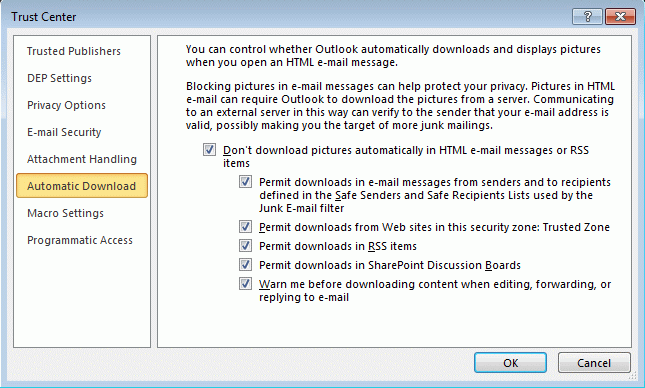
Open the trust center to adjust the blocked downloaded settings

You can allow automatic download from addresses or domains on the Safe Senders and Safe Recipients lists used by the Junk email filter. This would include addresses in your contacts folder, if you have the Junk email filter configured to trust addresses in your address book.
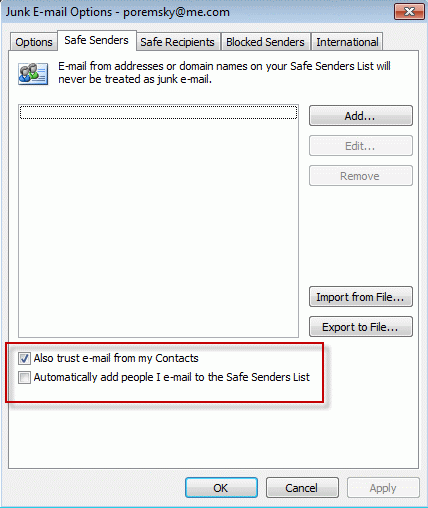
Safe senders list in Junk email settings

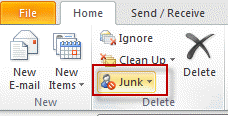
In Outlook 2010, you can access the Junk Email Options from the Home ribbon. There are separate junk mail settings for each email account in your profile. To access the settings for a specific account, open that account's Inbox then view the Junk Email Options. If you use one Inbox for all accounts, select a message received by that account then view the Junk Email Options.

In Outlook 2007 or Outlook 2003, Junk Email Options are on the Tools, Options dialog.

Published October 17, 2012. Last updated on October 17, 2012.
Share this:

  • Twitter
  • Facebook
  • LinkedIn
  • More
  • Print
  • Tumblr
  • Reddit
  • Pocket
  • Pinterest

Related posts:

Configure Junk settings on each mailboxTip 746: Outlook and Junk Email Settings Tip 1020: Microsoft Service Agreement virus and why you should block external content Outlook 2003 includes a junk e-mail filter and a safe list which allows all entries in your address book to bypass the junk filterTip 21: Using Safe Lists Tip 477: Junk Email Filtering not Working?
Subscribe
Notify of
0 Comments
Newest
Oldest Most Voted
Inline Feedbacks
View all comments

Primary Sidebar

Search OutlookTips

Training and one-on-one assistance

Do you need help setting up Outlook or want some one-on-one training? I'm available for hire. See Training and one-on-one assistance for fees and to check availability.

All-Time Most Popular Posts

  • Windows 7 and Vista Start Search field
    How to start Outlook in safe mode
  • outlook.com icon
    Delete a message stuck in Outlook's Outbox
  • How to use Outlook's Command line switches
  • Use Cleanviews switch to reset all views
    How to Reset the View on Outlook folders
  • Where are my Outlook Files?
  • Folder paths
    How to Find Folder Paths in Outlook Mailboxes
  • How to use Scanpst.exe to repair Outlook data files
  • Outlook's Missing Holidays
  • backstage page
    Where is File tab in Outlook?
  • Icons found in the Inbox, Message Headers, and Toolbars

Footer

Recent Posts

  • Log into multiple Outlook on the web accounts
  • Keeping Hackers out of Microsoft accounts
  • Microsoft Account Closure Email
  • Outlook on the web Quick Actions moved to the right
  • Automatically sign out of Outlook.com

Recent Bug List

Microsoft keeps a running list of issues affecting recently released updates at Fixes or workarounds for recent issues in Outlook for Windows.

Office Update History

Update history for supported Office versions is at Update history for Office

Resources

Ask questions and share your knowledge in Outlook Forums.

You Might Like

Where is File tab in Outlook?
Using Two-factor authentication
Where are my Outlook Files?
How to use Outlook's Command line switches

© 2003–2026 ยท Outlook Tips

wpDiscuz
You are going to send email to

Move Comment