![Diane Poremsky [Outlook MVP]](http://www.outlook-tips.net/images/2014/MVP_BlueOnly.png)
If you have hidden, unknown messages that won't send, it's most likely read receipts. They are stored as hidden messages at the root level of your mailbox.
There are two methods that can be used to delete them:
- Change the SMTP server for the account to a server you can access send. (Remember to change it back to the one you normally use for the account after they are sent.)
- Delete the hidden messages using MFCMAPI, OutlookSpy, or MDBVue. (MDBVue is out-dated and we recommend using MFCMAPI or OutlookSpy.)
The advantage of using MFCMAPI is that it does not install a program, the exe runs without making changes to your computer and it does not require you to close and restart Outlook.
If you prefer to use OutlookSpy, instructions are at Delete Stuck Read Receipts using OutlookSpy.
If you have a problem with a message that keeps sending over and over (recipient gets multiple copies) but its not in your Outbox, its usually caused by an antivirus scanner add-in scanning outgoing messages. If the message keeps sending after you disable email scanning and its not visible in the Outbox, you can look for it and delete it from the data store using the method here.
Use MFCMAPI to Delete Stuck Read Receipts
Download and run MFCMAPI. Use the 32-bit version with Outlook 2007 and earlier or Outlook 2010 32-bit and the 64-bit build with Outlook 2010 64-bit.
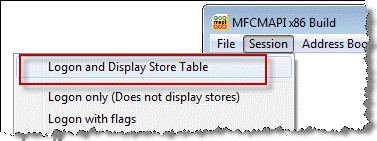
1. From the Session menu, choose Logon and Display Store table
2. Next, go to MDB menu and Open Default Message store.
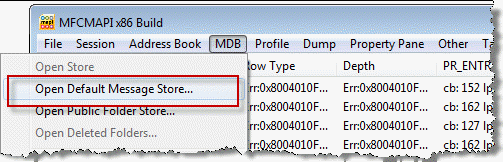
When a secondary account has its own message store and places the outgoing messages in its own Outbox, select that account and right click, choose Open Store.
Tip: you can right click on the account in the list and choose Open Store instead.
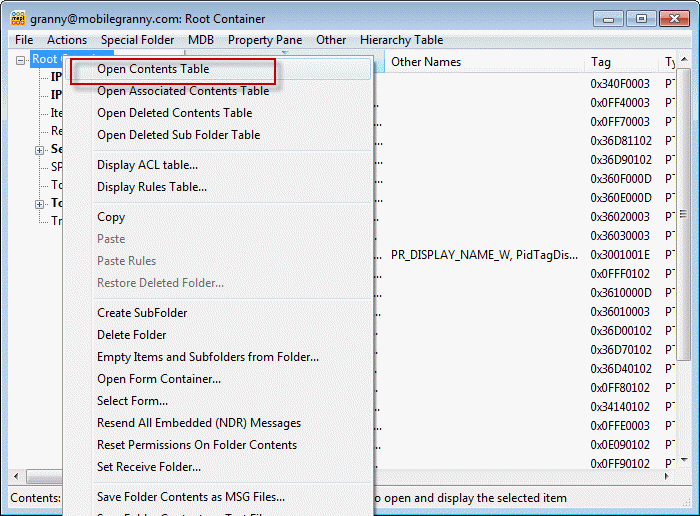
3. Right click on Root Container and choose Open Contents Table
4. In the Contents table, right click a read receipt and choose Abort Submit. Ok the dialogs.
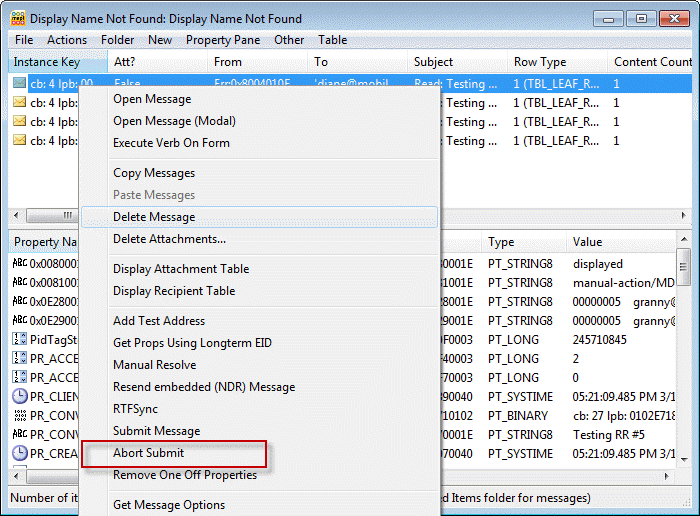
5. Right click again and choose Delete message. Ok the dialogs.
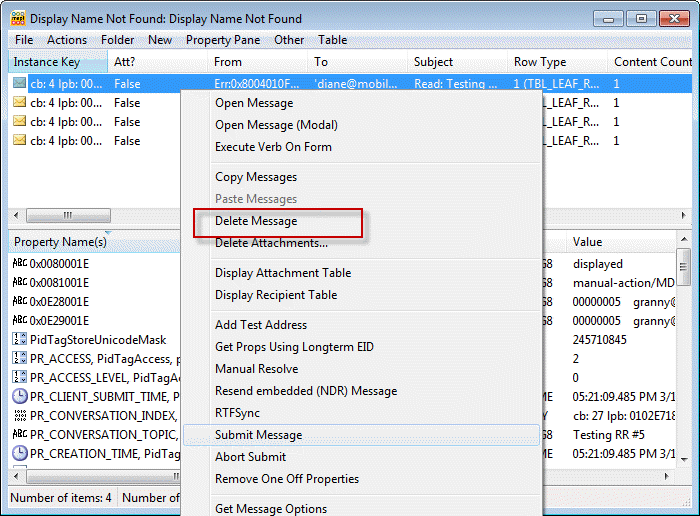
Repeat steps 4 and 5 for each read receipt you need to delete.
Note: Outlook Connector (Live/Hotmail/MSN) accounts do not return read receipts and you will not have any "stuck" receipts with these accounts.
Delete Read Receipts using MFCMAPI Video Tutorial
This video shows you how to delete read receipts using MFCMAPI.
Page 2: Delete an invisible message that keeps resending