![Diane Poremsky [Outlook MVP]](http://www.outlook-tips.net/images/2014/MVP_BlueOnly.png)
Outlook has two types of views, a global views that is available to all folders of a specific types and a folder-only view, that is visible when you view only that folder. The global views (all folders) are stored in the default data files while the 'this folder only' views are stored in the folder. If you open an second pst file in your profile, only the 'this folder only' views stored in it are accessible.
Microsoft Outlook doesn't offer an easy method to backup or share custom views, and exporting the contents to a new pst does not include the views or custom forms.
You can save or share views using one of these methods in older versions of Outlook:
- Copy the pst and remove all email, calendar and contacts from it. Create copies of all views (in the Define views dialog) choosing "for this folder only" views.
- Backup the pst – views are contained in the folders in the backup. Like the method above, this doesn't work for sharing views, unless you make copies of all views in the Define views dialog.
- Add a new pst to the profile and copy views to it. Use this method to share views or backup views in an Exchange server mailbox.
Copy or backup the pst file
You can backup your views by copying the pst file. Create copies of all views (in the Define views dialog), creating "for this folder only" views. If you don't make copies 'for this folder only', the views will only be accessible when you use this pst file as a default data file.
If you are going to share the views with someone else, delete the Outlook items from the data file, leaving any folders that have custom views created for 'this folder only.
If you open a copy of your pst you created for backup purposes in your current profile, views that are "for this folder only" will be accessible in specific folders the views were created for. Any view that is for "all folders" will only be accessible if the backup copy is set as default data file in your profile.
If you use Export as your backup method, the views will not be exported. You need to copy the pst file. (Microsoft's PST backup tool creates a copy of the pst.)
Method 3: Copy views to a Views_backup.pst
- Add a new pst to the (File, New, Outlook Data File)
- Add folders to the pst for each type of view you need to copy. (One folder each of Mail, Calendar, contacts, etc)
- Select the first new folder.
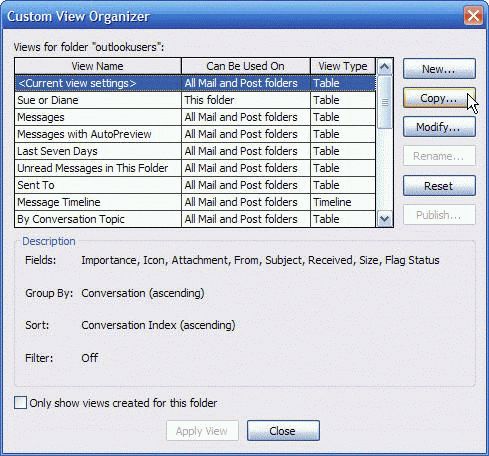
- Open the Define views dialog
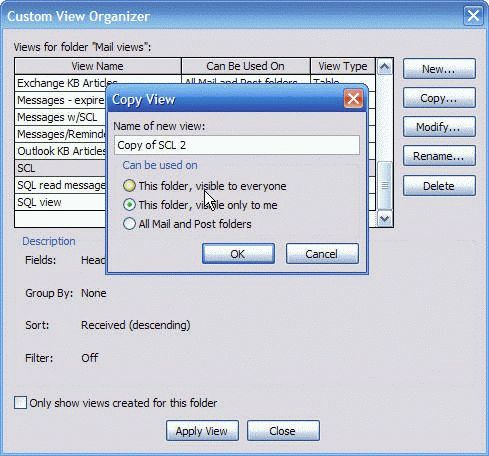
- Select the view you want to copy to the new pst and click Copy.

- Select one of the "This folder…" options
- Change the view name, if desired.
- Click Ok.
- Repeat for each view you want to copy.
Repeat for each folder type.
Restore Views
To copy a view that was originally designed for "this folder only", you'll need open that folder, and make a copy of it using the "For all [folders]" option then begin with Step 3.
Copying views to a different pst uses the same steps, but you'll copy the "for this folder view" and set it for All [folder]. This adds it to the default pst (or Exchange mailbox). If you want it for a specific folder only, you'll need to select the folder, copy the view again and set it for this folder only.
Views created for "this folder only" are stored in the folder – moving or copying the folder to a new pst includes these views (as well as custom forms published to the folder).
In older versions of Outlook, Exchange server users can copy views and published forms using the File, Folder menu.
How to copy views video Tutorial
Published May 14, 2011. Last updated on October 25, 2020.