![Diane Poremsky [Outlook MVP]](http://www.outlook-tips.net/images/2014/MVP_BlueOnly.png)
The following scenario is a very common problem. It's often caused by upgrading Outlook and not making a new profile. It generally means the profile is corrupt and although it's usually best to create a new profile (especially if you upgraded), you can try to rescue the old profile. While it's easy to screw up the profile, which will force you to make a new one, if the ghost PST has a unique name (as opposed to being a duplicate of your personal folders), the chances of success are greatly increased.
I have an archive pst that I'd like to right-click/close in Outlook. I get "the operation failed. An object could not be found" error message. I also get the error clicking on the Properties button. I upgraded my Office Outlook, hoping it might get resolved. Any ideas on how to close it?
For starters, upgrading rarely fixes profile problems and this is definitely a profile problem. Uninstalling and reinstalling or using Detect and Repair rarely help either as they don't touch the profile or user files that often cause problems.
If creating a new profile is not a desired option, try Michal's Method below. If this fails, you can try to remove the ghost entry from the registry. Note that unless you have several email accounts to recreate, it's better to create a new profile because this usually indicates other problems with your profile.
Michal Bednarz of CodeTwo software discovered this simple method for removing ghost pst's from a profile.
- Close Outlook.
- Go to the folder where the pst is stored. The default location is Documents\Outlook Files but pst files created in older versions of Outlook may still be in C:\Users\%username%\AppData\Local\Microsoft\Outlook.
- Make a copy of the Outlook.pst file. The file should be copied to the same folder. (Select the PST, press Ctrl+C to copy, Ctrl+V to paste)
- Rename the original file to Outlook1.pst and the other one to Outlook2.pst.
- Restart Outlook.
- Since Outlook cannot find the PST file, it displays a message box asking you to choose which PST file it should use. Select the Outlook1.pst file.
- Outlook will again display the same message box for the ghost PST. This time select the Outlook2.pst file.
- Outlook will start and you will see two PST stores in the profile as usual.
- Right click on the second PST and the Close command should now be active so you can remove it from the profile.
- Close and start Outlook again. If everything is all right and the second PST file didn't appear again in the profile, you can delete the Outlook2.pst file from your disk.
If this does not work, you can follow the instructions below to delete it from the registry if you want to avoid making a new profile. If that method fails, you'll need a new profile.
Note that ghosts often indicate corruption in the profile and you may have other issues until you create a profile, but these methods will take care of the immediate annoyance until you have time to redo the profile.
Keep in mind that editing the profile in the registry is at your own risk. Fortunately, provided you touch only keys within the profile key, the worst you'll do is screw up the profile and need to make a new one. You won't render Windows inoperable.
Open the Registry editor (Press Windows Key + R to open the Run dialog, type regedit)
Find your profile.
If you use Outlook 2016, 2019, 2021, 365, the profile key is at
HKEY_CURRENT_USER\Software\Microsoft\Office\16.0\Outlook\Profiles
If you use Outlook 2013, the profile key is at
HKEY_CURRENT_USER\Software\Microsoft\Office\15.0\Outlook\Profiles
If you use Outlook 2010 or older, it's under Windows Messaging Subsystem.
In Windows 2000/XP/Vista, Windows 7 or 8, this is at
HKEY_CURRENT_USER\Software\Microsoft\Windows NT\CurrentVersion\Windows Messaging Subsystem\Profiles
Your screen will look something like this after you expand the profile key. If you have more than one profile, each one will be listed. Choose the correct one and expand it.
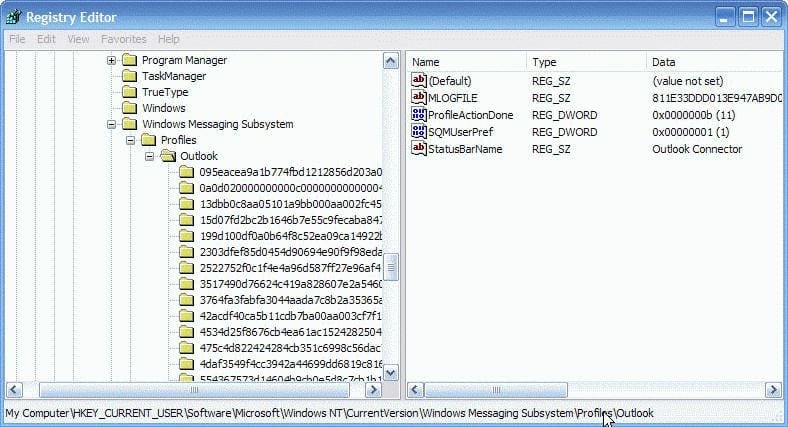
Each PST has two registry keys. Ghost psts only have one. You need to find and delete that key to remove it from the profile. As I said earlier, if the pst has a unique name, you can easily locate the one key, but when it's a ghost of your default pst, you have to guess and if you guess wrong, you'll need a new profile.
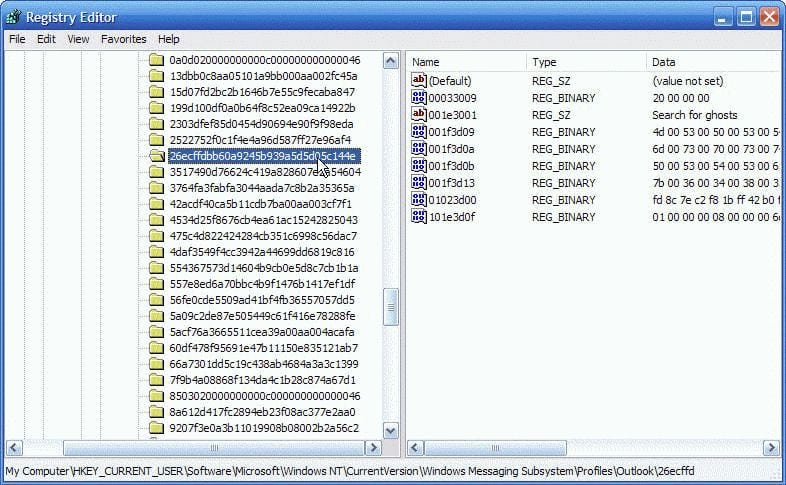
Press F3 and search for the display name of the ghost – this is the name you see in your folder tree. In Outlook 2003 and 2007, the PST name is stored in binary format so you'll need to search for 001e3001 and double click on the value to look for the PST name. If the ghost is not a duplicate of another folder, you can delete the key (on the left side) when you find the name. Otherwise, identify all of the keys that are associated with the PST before deciding which one to delete.
In this example, I would delete 26ecffdbb60a9245b939a5d5d05c144e from the left side if the ghost pst was unique and not a duplicate.
Identify Duplicate Ghosts
If the ghost folder is a duplicate, you need to locate all of the keys for that folder name and determine which one belongs to the ghost..
The valid pst will have two keys, with entries similar to the following screenshots, where the value in 001e3001 is the PST name. In Outlook 2007, the PST name is stored in binary format so you'll need to search for 001e3001 and double click on the value to look for the PST name. The file path is stored in binary format in 01020fff.
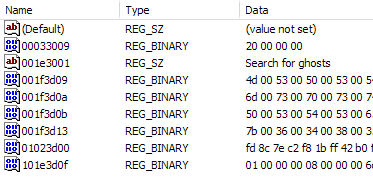
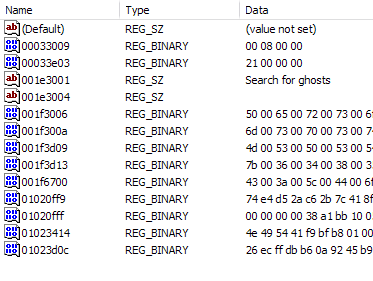
The ghost will have just one key. After you find all three keys, delete the one that is duplicated. Usually, the "good" keys are close to each other, with the values shown in the first screen shot listed before the ones in the second screen shot. Take a guess at which duplicated key belongs to the ghost. If you're wrong, the worst that will happen is you'll need to make a new profile.
Published May 14, 2011. Last updated on January 6, 2022.