![Diane Poremsky [Outlook MVP]](http://www.outlook-tips.net/images/2014/MVP_BlueOnly.png)
I frequently tell people to "delete the SRS" to fix problems with send and receives, especially when Outlook crashes when they try to view the Send and Receive menu or do a send and receive.
If you haven't guessed yet, SRS is the send and receive settings file. It holds the configurations found in the Send and Receive dialog that comes up when you press Ctrl+Alt+S. I have no idea what causes it to become corrupt, but deleting (or renaming it) fixes the problem. Outlook will create a new one containing the default settings when you restart it.
Delete or Rename the file? In most cases, the user does not have a lot of customizations configured in the Send and Receive dialog so deleting the file is fine, even if it turns out it wasn't the problem. If you made a lot of customizations to your send and receive settings, you can rename it until you find out if it was the problem. If the problem continues after restarting Outlook, it wasn't the SRS file.
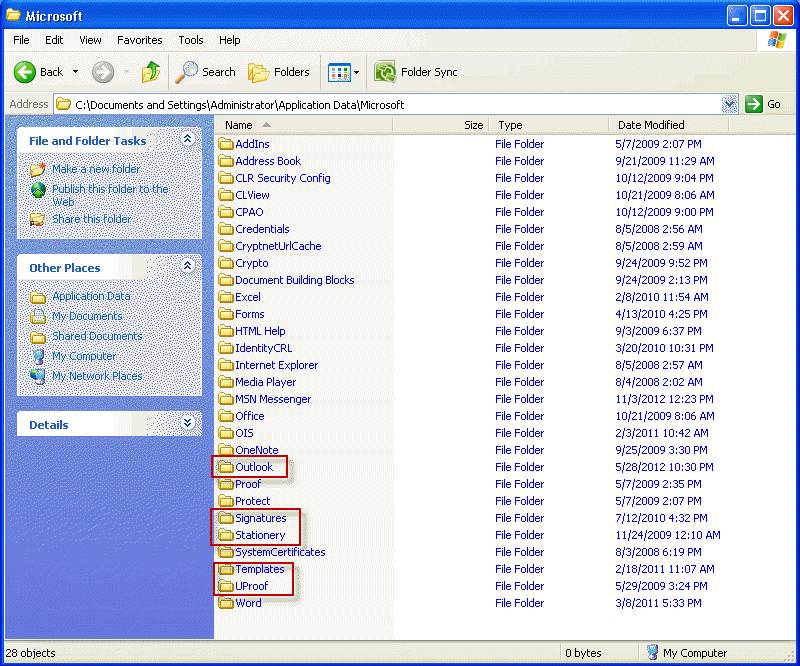
The SRS is in the "roaming" Outlook folder under your Windows user account.
In Vista and Windows7, the SRS is at
C:\Users\username\AppData\Roaming\Microsoft\Outlook
In Windows XP and 2000, its at
C:\Documents and Settings\username\Application Data\Microsoft\Outlook
It's easy to open the folder where the SRS file is by entering a simple command in the Windows Explorer address bar. (No need to type it – click 3 times in the box to select the command then copy and paste.)
In Vista or Windows 7, use
%appdata%\microsoft\outlook
In Windows XP or Windows 2000, use
%USERPROFILE%\Application Data\Microsoft\Outlook
This folder is a "hidden file or folder", so you'll need to enable Show hidden files and folders in Windows Explorer options if you want to browse to the folder, or search for hidden files and folder if you use search.
Published May 15, 2011. Last updated on May 5, 2017.