![Diane Poremsky [Outlook MVP]](http://www.outlook-tips.net/images/2014/MVP_BlueOnly.png)
Outlook 2002/20023 and Outlook 2000/98 in Corporate/Workgroup mode allow you to have as many profiles as you want. Generally, we recommend one profile per computer user (creating a Windows user account for each user is best, especially if you use Windows XP, but more hassle if you use Windows 98/ME). If you use Outlook for personal and business email, you'll probably want two profiles.
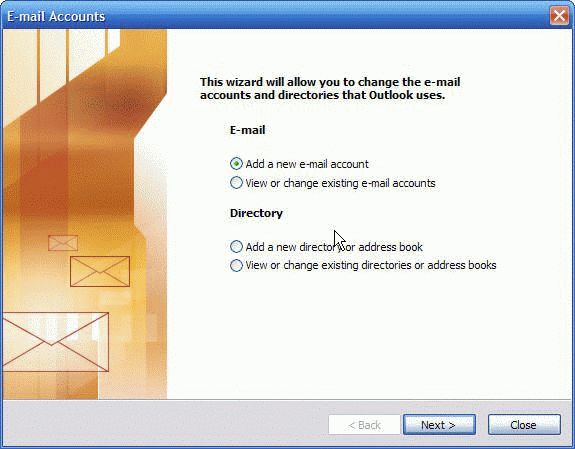
If you need to add a second account to your current profile, go to the Tools, Services menu in Outlook then click the Add button and choose the Internet Service. You can then start with this step.
Use the following steps to create a new profile using Outlook 2000 Corporate mode. See Outlook 2002/2003 instructions for the specific screens used in those versions. Instructions for Outlook 2000 Internet Mail Only (IMO) mode are here.
Note that Outlook 2000 Corporate/Workgroup supports only POP3 and Exchange accounts.
- Close Outlook.
- Open Control Panel and find the Mail applet.If you use the Category view in Windows XP's Control Panel, look for the Mail applet in the User Accounts category.
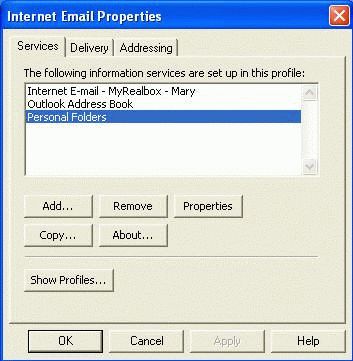
- Select the Show Profiles button.
- Click the Add button to make a new profile.

- Select the option to use the following information services
- Add a check to the Internet Email Account field. If you use an Exchange account, your administrator will tell you how to set your account up or set it up for you.
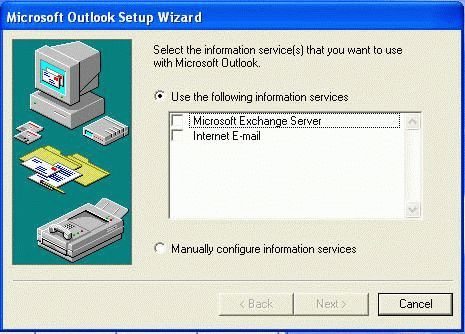
- Click Next and enter a Name for your profile.
Tip: Use a descriptive name, so you know what the profile contains without looking at it's Properties.
- Click Next and then click the Setup Email Account button.
- You'll have 4 tabs on the account property dialog: General, Servers, Connection, and Advanced.
General:
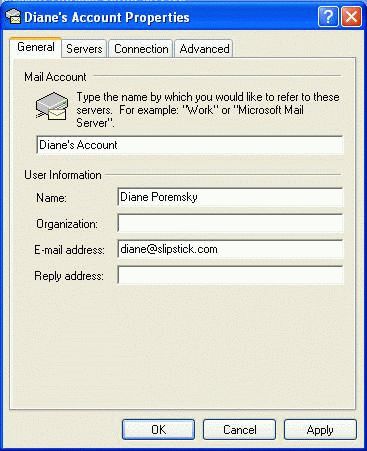
- Enter a name for the account.
- Enter your desired display name in the Name field
- Enter your email address in the email address field
- You can enter an organization name, if desired
- Enter a reply to address if you want replies to be sent to a different address.
Servers:
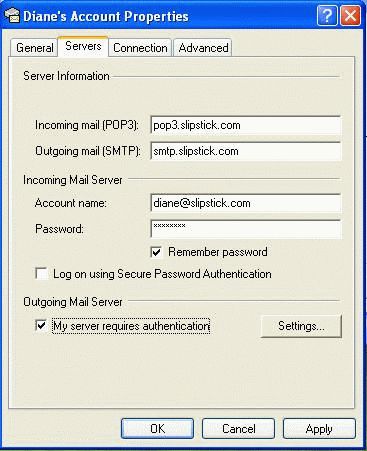
- Enter the Incoming (POP3) server name. If you don't know your server names, check with your email provider before continuing.
- Enter the Outgoing (SMTP) server name.
- Enter your username, usually your alias (the part before @) or your complete email address
- Enter your password.
- If your outgoing server requires authentication, add a check to the box and click the Settings button to configure authentication.
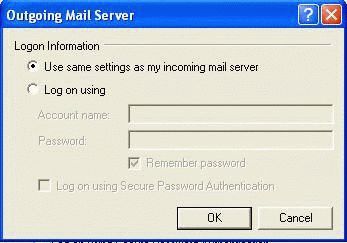
Select the authentication method your email provider uses. If you aren't sure which one to choose, check with your provider.
Connection:
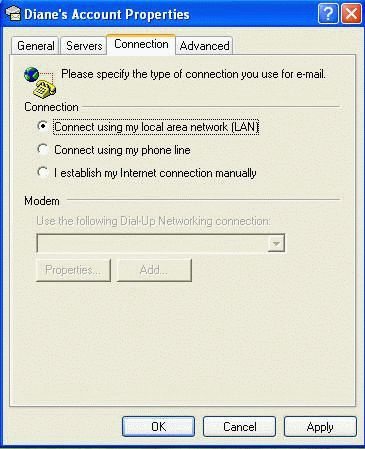
- Select how Outlook connects to your mail server. Choose LAN if you want Outlook to send messages immediately.
Advanced:
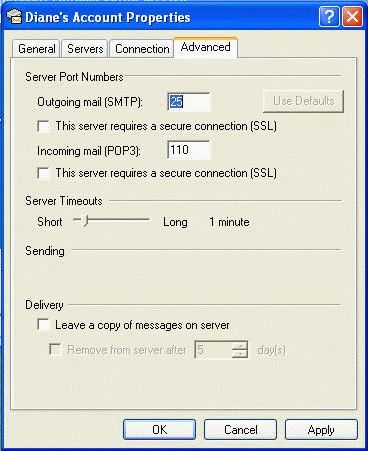
- If your server uses different ports, make the changes on this tab.
- you can change the timeout or configure Outlook to leave mail on your server also.
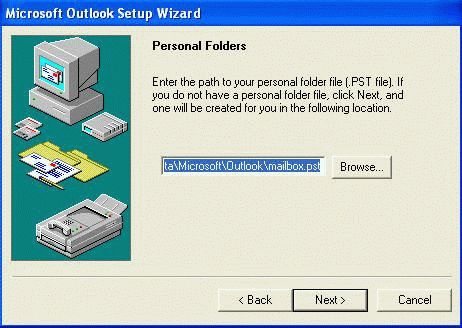
After configuring the account, you'll be given the opportunity to select the personal folders you want to use. If you are moving to a new computer or have a personal folder store (*.pst) you want to use, click the Browse button and find it. Otherwise, click Next.
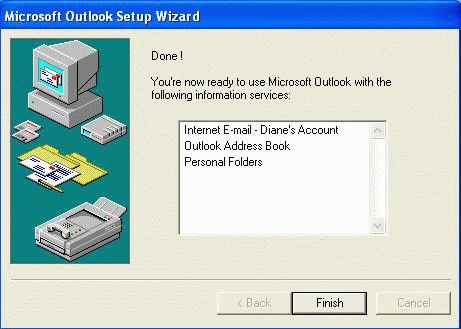
The final screen displays the accounts you have in your profile.
Published May 15, 2011. Last updated on May 5, 2017.