![Diane Poremsky [Outlook MVP]](http://www.outlook-tips.net/images/2014/MVP_BlueOnly.png)
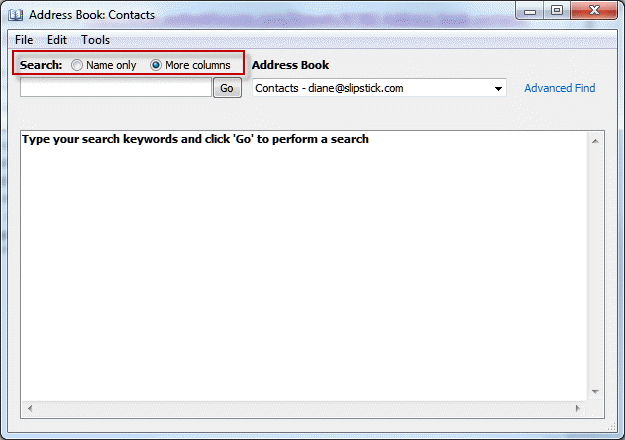
An Outlook user had this complaint: "I used to click on the address book icon and the address book would open to a nice listing of my contacts. Now I get a search box requiring me to enter a search term. How do I get my old address book format back?"
Type your search keywords and click "Go" to perform a search
At the top of the address book dialog are two radio buttons, one for "Name only" and one for "More columns". You have More Columns selected and that always requires searching for contacts. Choose Name only to see the list of names in your Contacts folder or GAL.
Published December 8, 2010. Last updated on February 9, 2012.