![Diane Poremsky [Outlook MVP]](http://www.outlook-tips.net/images/2014/MVP_BlueOnly.png)
A user asked
“I was trying to categorize some messages and when I right clicked "Categorize", I selected the category then realized I removed the category. How can I undo this mistake?”
There is no undo command for accidentally removing categories, but if the items are still selected, reselecting the category will restore them to the items.
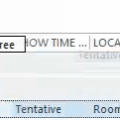
If it’s too late for that, switch to a list view and add the Modified date field to the view. All of the contacts that were selected when you removed the category will have the same Modified date. You can select them and re-categorize them.
If you had multiple categories assigned to contacts or clicked the clear all categories command, you can use the Modified date field to identify the contacts that were changed but you’ll need to remember if any other categories were assigned to each contact.
While the modified date field will help you identify items that were changed, not all changes result in a new modified date field.
Published January 12, 2011. Last updated on October 2, 2012.