![Diane Poremsky [Outlook MVP]](http://www.outlook-tips.net/images/2014/MVP_BlueOnly.png)

Not everyone likes Outlook's new blue icon. They want the yellow icon back.Where did the yellow icon go for Outlook? It's confusing me everyday.Users don't like the new blue icon because it's not instantly recognizable as Outlook. It's blue, not yellow, and it looks like Word's icon, or Lync. Not Outlook. Users need to pay a little more attention to the actual icon; … [Read more...] about Change Outlook's Blue Icon
Tip 1113: Icons missing in Outlook 2013?

The envelope will not appear in the screen unless I reply or forward to an email. I removed the icon column and added it back in. I removed all add-ins and that did not work either.It's not an addin or corrupt view that removed the icon and you can't "fix" it. It's the new Outlook look, with minimal distractions. In Outlook 2013, Unread messages have a vertical bar on … [Read more...] about Tip 1113: Icons missing in Outlook 2013?
Tip 1112: Control which Appointments are shown in the To-Do Bar
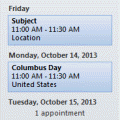
One fairly common question from Outlook users with multiple email accounts or iCloud is how to get their appointments to show on the To-do Bar.Outlook's To-do Bar (and Calendar Peek) display appointments in the user's default calendar. If you want it to display appointments from a different calendar on your To-Do Bar, you either need to set the Calendar's data file as your … [Read more...] about Tip 1112: Control which Appointments are shown in the To-Do Bar
Tip 1111: Outlook 2013 hotfix: Calendar peek and more
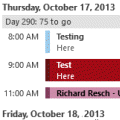
Among the issues that the Outlook 2013 hotfix that came out this week addresses is one that annoys many users: the Calendar Peek displays appointments for the selected day only, not the next several appointments.No more! The hotfix restores the behavior of the Calendar Peek to the behavior users were used to with the To-do Bar in older versions, displaying appointments on … [Read more...] about Tip 1111: Outlook 2013 hotfix: Calendar peek and more
Tip 1109: Show the BCC field in Outlook
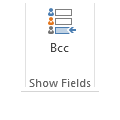
Outlook doesn't display the BCC in message forms by default, but you don't really need to see the BCC field to use it.Simply click the To button (1 in the screenshot), then select a name from your address book and click the button next to the BCC field or type an address into the BCC field. When you click Ok and return to the message, the BCC field will display in the … [Read more...] about Tip 1109: Show the BCC field in Outlook