![Diane Poremsky [Outlook MVP]](http://www.outlook-tips.net/images/2014/MVP_BlueOnly.png)
Outlook pops up many dialogs that offer a 'never show this again' checkbox. If you check the box and change your mind, you'll need to edit the registry if you want to see the dialog again. You can also add values to this key so you (or your users) won't be presented with the dialogs ever. To control which dialogs are shown, browse to the following registry key (replacing the … [Read more...] about Tip 424: Never Show Dialog
Tip 407: Spell Check the Subject Line
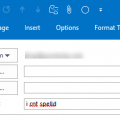
Note: the need to set Word as the editor only applies to old versions of Outlook. Current versions use Word as the only editor. Spellcheck works in both the subject line and message body and misspelled words will be underlined in red.If you use Outlook with Word as the editor and use Word's spell check as you type option, you've probably noticed the subject is not … [Read more...] about Tip 407: Spell Check the Subject Line
Outlook's Reply to All includes my own address
Outlook Tip 374: Reply to AllTravis had this question: I was wondering; is there a way to automatically strip your own email address when doing a "Reply All." Seems every time I get an email sent to me and someone else a Reply All always wants to send me a copy of the message I'm composing. This should only happen with Outlook 2002 and previous versions, and only when you … [Read more...] about Outlook's Reply to All includes my own address
Tip 369: Emailing a Calendar
How can I send my monthly calendar to someone within Outlook 2003? Let me count some of the ways: Use a word template and either send it as a document or save as HTML. See Calendar Tools for Outlook for templates. … [Read more...] about Tip 369: Emailing a Calendar
Tip 307: Shortcuts for Reading the Next Message
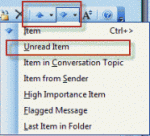
Does Outlook have a "next unread message" feature? Sure, but it's not quite as easy to use as it is in some other email programs. With a message open, you can use the blue up and down arrow buttons or keyboard shortcuts of Ctrl+> and Ctrl+< to go to the next message, read or unread. The button dropdown menus have a number of options, including one for the next unread … [Read more...] about Tip 307: Shortcuts for Reading the Next Message