• Skip to main content
  • Skip to primary sidebar
  • Skip to footer

Outlook Tips

Learning Microsoft Outlook One Tip At A Time

Diane Poremsky [Outlook MVP]

  • Home
  • Tips Archive
  • How to...
  • Beginner
  • Outlook.com

Archiving Last Year's Email

It’s a new year and many people like to start off with a clean mailbox.

I created a new pst in Outlook for 2015, making the 2014 PST an archive of sorts. I’ve been doing it this way for years, so I have some 16,000 messages stored on the server. How can I avoid downloading all of the messages again?

Because the Mailbox Manager file that Outlook uses to identify the last message downloaded is stored in the pst file, you can't do this easily.

If you don't mind re-downloading everything, you can create a rule to move older mail to a different folder (or to deleted items) to delete it, but my recommendation is to archive the old mail to a new pst and keep the old pst for new mail. This will avoid the need to download all 16K messages, it won't mess up the calendar or contacts, and you won't lose your views or rules.

The other option is to move the mail to another folder online (POP3 only downloads mail that is in the Inbox), or if your server supports it, configure the server to allow clients to download mail that is newer than a specific date (Gmail does).

Create a Rule

  1. Open the Rules Wizard and click New Rule
  2. Choose Apply Rule on Messages I Receive (at the bottom of the dialog).
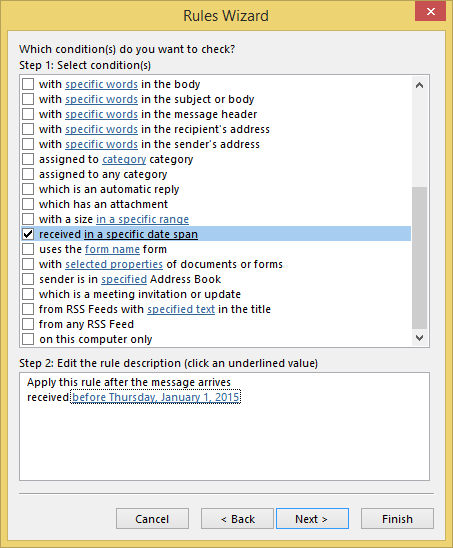
  3. Choose the “received in a specific date span” condition.
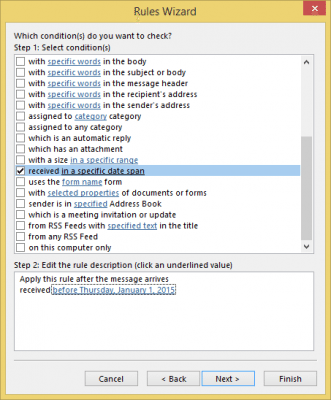
    Set the conditions in the rule

  4. Click on “in a specific date span” to open the date selector.
  5. Choose Before and set the date to Jan 1 2015. Click OK, then Next.
    Set the date in the rule
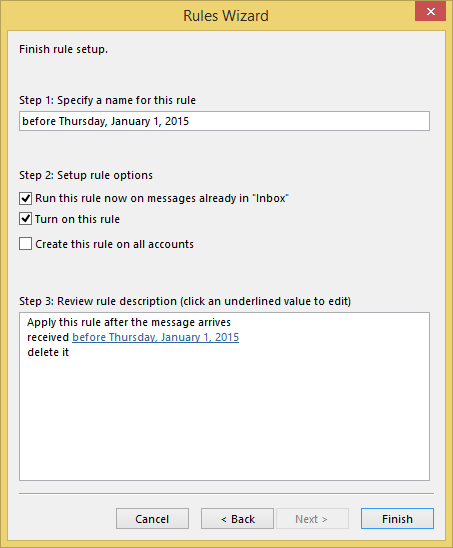
  6. Choose Delete it as the Action.
  7. Complete the rule and save it.

    Finialize and save the rule

When you re-download existing messages, the messages older than this date will be deleted.

Archive Older Messages

The better solution is using Archive to move old messages to a new pst file. This will preserve your rules, custom views, and search folders as well as retain your folder structure.

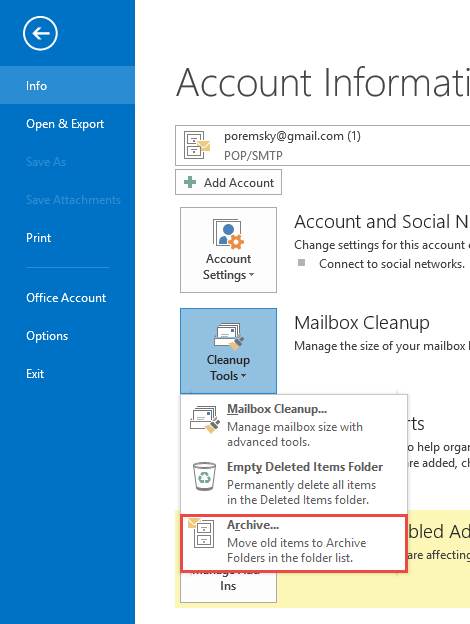
  1. To run Archive manually, go to File, Clean Up Tools, and select Archive.

    Clean up dialog

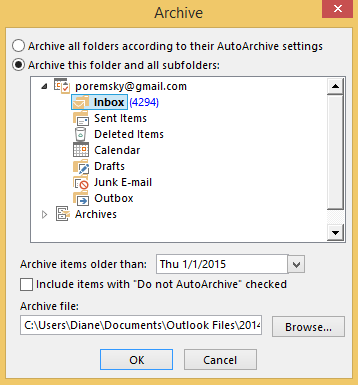
  2. Choose Archive this folder and all subfolders.
  3. Select the root folder of your mailbox.

    Archive Now dialog

  4. Select the archive date.
  5. Click Browse, then type 2014 in the file name field. Outlook will create the pst if it doesn’t exist.
  6. Click OK to start archiving older mail.
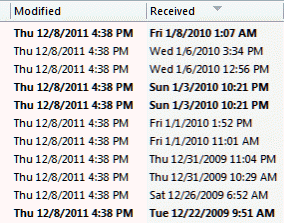
By default, Outlook archives email based on the last modified date, not the received date. Marking a message as read or replying will change the last modified date. You can archive on the received date in Outlook 2010 or 2013 by setting a registry key. See
AutoArchiving by Received Date in Outlook
for more information and a ready to use registry file.

Published January 3, 2015. Last updated on January 3, 2015.
Share this:

  • Twitter
  • Facebook
  • LinkedIn
  • More
  • Print
  • Tumblr
  • Reddit
  • Pocket
  • Pinterest

Related posts:

checking the modified date fieldTip 873: Archiving by received date in Outlook 2007 and 2010 Tip 1104: How to create "Not" rules When you want to delete messages after a period of time you have you have three options: Use Autoarchive Create a Rule and use RunTip 887: Create a rule to delete messages after a week John asks: Is it possible to copy out-going emails to outlook mail folders? This would be very useful as currently I have to fileTip 315: Copy Sent Messages
Subscribe
Notify of
2 Comments
Newest
Oldest Most Voted
Inline Feedbacks
View all comments

Primary Sidebar

Search OutlookTips

Training and one-on-one assistance

Do you need help setting up Outlook or want some one-on-one training? I'm available for hire. See Training and one-on-one assistance for fees and to check availability.

All-Time Most Popular Posts

  • Windows 7 and Vista Start Search field
    How to start Outlook in safe mode
  • outlook.com icon
    Delete a message stuck in Outlook's Outbox
  • How to use Outlook's Command line switches
  • Use Cleanviews switch to reset all views
    How to Reset the View on Outlook folders
  • Where are my Outlook Files?
  • Folder paths
    How to Find Folder Paths in Outlook Mailboxes
  • How to use Scanpst.exe to repair Outlook data files
  • Outlook's Missing Holidays
  • backstage page
    Where is File tab in Outlook?
  • Icons found in the Inbox, Message Headers, and Toolbars

Footer

Recent Posts

  • Log into multiple Outlook on the web accounts
  • Keeping Hackers out of Microsoft accounts
  • Microsoft Account Closure Email
  • Outlook on the web Quick Actions moved to the right
  • Automatically sign out of Outlook.com

Recent Bug List

Microsoft keeps a running list of issues affecting recently released updates at Fixes or workarounds for recent issues in Outlook for Windows.

Office Update History

Update history for supported Office versions is at Update history for Office

Resources

Ask questions and share your knowledge in Outlook Forums.

You Might Like

Where is File tab in Outlook?
Using Two-factor authentication
Where are my Outlook Files?
How to use Outlook's Command line switches

© 2003–2026 · Outlook Tips

wpDiscuz
You are going to send email to

Move Comment