• Skip to main content
  • Skip to primary sidebar
  • Skip to footer

Outlook Tips

Learning Microsoft Outlook One Tip At A Time

Diane Poremsky [Outlook MVP]

  • Home
  • Tips Archive
  • How to...
  • Beginner
  • Outlook.com

Tip 992: Using Time Shortcuts in Appointments

The answer to this question is one of my all time favorite Outlook features: date and time shortcuts.

I use Outlook's Calendar for time tracking. Is there a way to automatically insert a start time and end time by clicking on a button? It's very laborious to have to manually enter the start and end time. I'm aware that I could use Journal, but Journal is worthless for other reasons. I don't want to add some cumbersome add-on when all I want to do is auto-fill start (when I start) and end (when I end) with the current time.
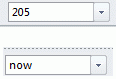
type shortcuts into the time fieldIs now simple enough? Type it into the time field and when you tab out, Outlook converts it to the current time. It really doesn't get any easier than that.

When you need a past time, just type the numbers: 205 will convert to 2:05 PM when you tab out. You'll need to use an a or p to if you work really early in the morning or late into the evening.

Although the date field has the correct date for this scenario, you can use shortcuts there too. Use 4d to count ahead 4 days or 2w to jump ahead 2 weeks.

Published June 4, 2012. Last updated on June 3, 2012.
Share this:

  • Twitter
  • Facebook
  • LinkedIn
  • More
  • Print
  • Tumblr
  • Reddit
  • Pocket
  • Pinterest

Related posts:

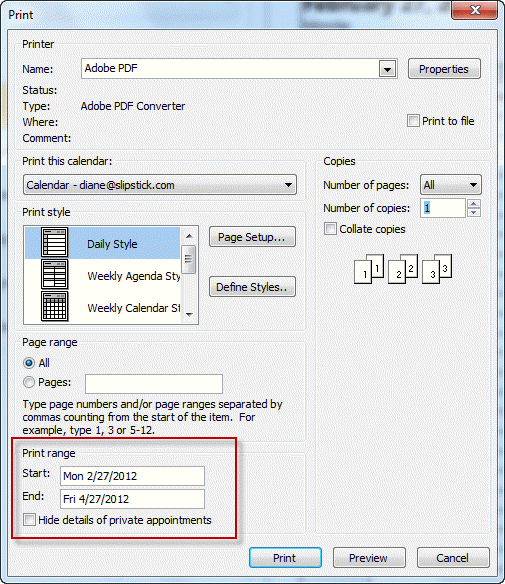
If you haven't already figured it out, using date and time shortcuts are a favorite of mine. Say good-bye to using the time anTip 401: Time and Date Shortcuts When you know the keyboard shortcuts, it's usually faster to use them than it is to mouse around menus. The following is a lisOutlook keyboard shortcuts Type shortcodes in the Print Range fieldTip 952: Missing Date Picker in Outlook's Print Options Dialog In older versions of Outlook you could right click on the Start menu or desktop shortcut and choose Properties to open the Mail prTip 817: Outlook's Start menu and Desktop Shortcuts
Subscribe
Notify of
2 Comments
Newest
Oldest Most Voted
Inline Feedbacks
View all comments

Primary Sidebar

Search OutlookTips

Training and one-on-one assistance

Do you need help setting up Outlook or want some one-on-one training? I'm available for hire. See Training and one-on-one assistance for fees and to check availability.

All-Time Most Popular Posts

  • Windows 7 and Vista Start Search field
    How to start Outlook in safe mode
  • outlook.com icon
    Delete a message stuck in Outlook's Outbox
  • How to use Outlook's Command line switches
  • Use Cleanviews switch to reset all views
    How to Reset the View on Outlook folders
  • Where are my Outlook Files?
  • Folder paths
    How to Find Folder Paths in Outlook Mailboxes
  • How to use Scanpst.exe to repair Outlook data files
  • Outlook's Missing Holidays
  • backstage page
    Where is File tab in Outlook?
  • Icons found in the Inbox, Message Headers, and Toolbars

Footer

Recent Posts

  • Log into multiple Outlook on the web accounts
  • Keeping Hackers out of Microsoft accounts
  • Microsoft Account Closure Email
  • Outlook on the web Quick Actions moved to the right
  • Automatically sign out of Outlook.com

Recent Bug List

Microsoft keeps a running list of issues affecting recently released updates at Fixes or workarounds for recent issues in Outlook for Windows.

Office Update History

Update history for supported Office versions is at Update history for Office

Resources

Ask questions and share your knowledge in Outlook Forums.

You Might Like

Where is File tab in Outlook?
Using Two-factor authentication
Where are my Outlook Files?
How to use Outlook's Command line switches

© 2003–2026 ยท Outlook Tips

wpDiscuz
You are going to send email to

Move Comment