• Skip to main content
  • Skip to primary sidebar
  • Skip to footer

Outlook Tips

Learning Microsoft Outlook One Tip At A Time

Diane Poremsky [Outlook MVP]

  • Home
  • Tips Archive
  • How to...
  • Beginner
  • Outlook.com

Tip 1019: Using date shortcuts to create a series of appointments

The scenario: you need to schedule 6 appointments in an "uneven" series, where each follow-up appointment has it's own schedule. For example, the first appointment is Day 1, the second is Day 3. The third appointment is in 2 weeks, the 4th in 6 weeks, then they are at 24 weeks, 12 months, and 24 months.

Can Outlook do this type of schedule? Yes, but not using recurrences.

To do this, you'll need to make 6 separate appointments or meeting requests but you can use one of my all-time favorite Outlook features to calculate the dates: date shortcuts.

  1. Begin by creating the first appointment then save and close it.
  2. Select it, press Ctrl+C to copy then use paste (Ctrl+V) to create the additional copies you need. Note that in older versions of Outlook, you may need to press ESC after selecting the appointment to copy it.
  3. Open one copy and in the date field type 3d. When you tab out of the date field, the date will be three days after the date in the date field. Edit the subject or notes as needed and save & close.
  4. Use date shortcuts to create appointments

  5. Open another copy and type 2w in the date field. This moves the date 2 weeks ahead of the original date.
  6. Repeat for the remaining appointments in the series. If you need to jump ahead by months instead of weeks, you'll need to use mo (as in 2mo). You can use 1y for year, or 12mo.
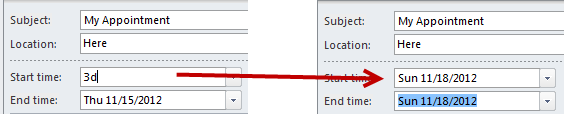
If the appointments are scheduled off of the previous appointment instead of from the first (Appt2 = appt1+3d, appt3 = appt2+2w), you can do it one or two ways: copy the current appointment and add the weeks then find that appointment and repeat or use the above instructions and note the date of each appointment. Type it in the date field and add the shortcut: 9/10+3w.

What if you know the last date and need to schedule appointments leading up to the final appointment? You can use the same method, but need to type the dates as "3 days before" or "3 weeks before" as Outlook does not accept the minus sign when doing date calculations.

If you often create a series of appointments using the same pattern, the macro at Create a Series of Tasks using VBA can easily be tweaked to create a series of appointments based off of one appointment.

Published August 30, 2012. Last updated on August 30, 2012.
Share this:

  • Twitter
  • Facebook
  • LinkedIn
  • More
  • Print
  • Tumblr
  • Reddit
  • Pocket
  • Pinterest

Related posts:

Tip 991: Ending a recurring series of appointments and keeping the exceptions Tip 891: Move a series of appointments to new dates calendarTip 874: Schedule multiple non-recurring appointments Do you want to countdown the days (or weeks) until vacation? Do you want to know someone's age on their birthday? Outlook doesTip 237: Create Countdown Appointments
Subscribe
Notify of
3 Comments
Newest
Oldest Most Voted
Inline Feedbacks
View all comments

Primary Sidebar

Search OutlookTips

Training and one-on-one assistance

Do you need help setting up Outlook or want some one-on-one training? I'm available for hire. See Training and one-on-one assistance for fees and to check availability.

All-Time Most Popular Posts

  • Windows 7 and Vista Start Search field
    How to start Outlook in safe mode
  • outlook.com icon
    Delete a message stuck in Outlook's Outbox
  • How to use Outlook's Command line switches
  • Use Cleanviews switch to reset all views
    How to Reset the View on Outlook folders
  • Where are my Outlook Files?
  • Folder paths
    How to Find Folder Paths in Outlook Mailboxes
  • How to use Scanpst.exe to repair Outlook data files
  • Outlook's Missing Holidays
  • backstage page
    Where is File tab in Outlook?
  • Icons found in the Inbox, Message Headers, and Toolbars

Footer

Recent Posts

  • Log into multiple Outlook on the web accounts
  • Keeping Hackers out of Microsoft accounts
  • Microsoft Account Closure Email
  • Outlook on the web Quick Actions moved to the right
  • Automatically sign out of Outlook.com

Recent Bug List

Microsoft keeps a running list of issues affecting recently released updates at Fixes or workarounds for recent issues in Outlook for Windows.

Office Update History

Update history for supported Office versions is at Update history for Office

Resources

Ask questions and share your knowledge in Outlook Forums.

You Might Like

Where is File tab in Outlook?
Using Two-factor authentication
Where are my Outlook Files?
How to use Outlook's Command line switches

© 2003–2026 ยท Outlook Tips

wpDiscuz
You are going to send email to

Move Comment