![Diane Poremsky [Outlook MVP]](http://www.outlook-tips.net/images/2014/MVP_BlueOnly.png)
One of the first troubleshooting steps you should try before doing things like uninstalling and reinstalling Outlook is creating a new profile. A new profile is also recommended when you upgrade to the latest version of Outlook.
Use the following steps to create a new profile using Outlook:
- Close Outlook.
- Open Control Panel and find the Mail applet. If you use the Category view in Windows's Control Panel, look for the Mail applet in the User Accounts category, or type Mail in the Search field
- Select the Show Profiles button. (Email Account and Data Files buttons open the Account Settings dialog for the default profile.)
- Click the Add button to make a new profile. Do not Copy your existing profile when you are creating a profile for troubleshooting purposes.

- Follow the wizard to add an account to your new profile.
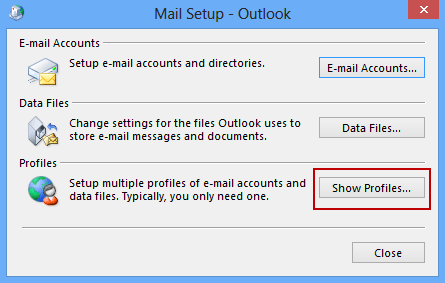
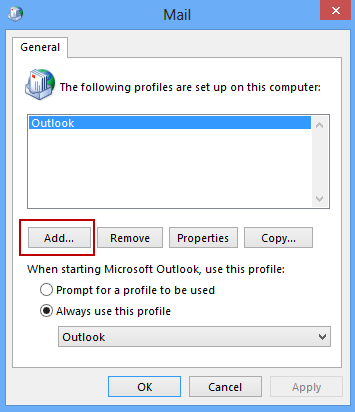
If you want to remove a profile, select it and click Remove. Click Properties to edit the accounts, add or remove data files, or make other changes using the Account Settings dialog.
Video Tutorial
Use your existing personal data store:
You can add an existing PST file to your profile one of two ways: from the Add account setup screen or from the Mail (profile) dialog.
If you're in the Auto account setup dialog
- Check the box to Change Account Settings in the lower left corner then click Next.
- Select Existing Outlook Data File and browse to locate your old data file.

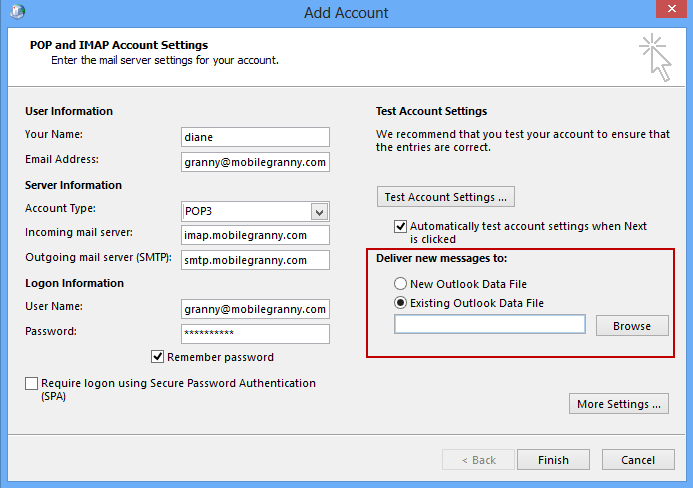
If you returned to the profile dialog before adding your existing PST to the profile,
- Select the new profile from the Mail dialog.
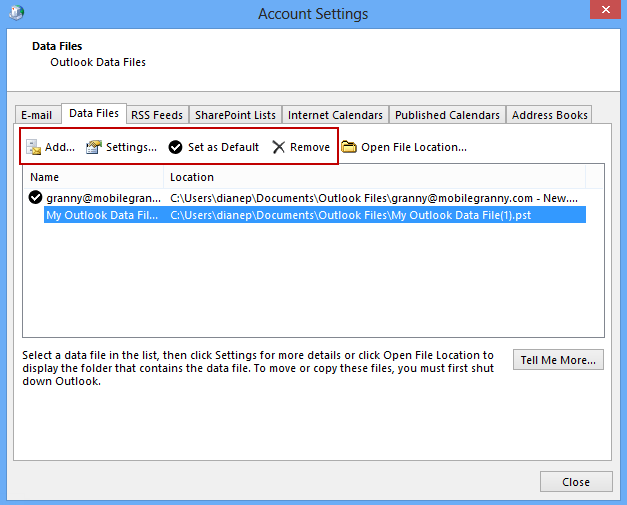
- Click Properties, then Data Files.
- Click Add then select New Outlook data file and find your existing PST. After you add it to the profile, select the PST file and click Set as Default to set it as the default.
- Select the pst Outlook auto-created and delete it. If Outlook won't let you delete it, you can close it after Outlook is opened. (Right click on the data file and choose Close.)
- Select the E-mail tab then select your email account and verify the path beside Change Folder is using the correct pst file.
Instructions for Outlook 2003 and older are at Create a new Outlook 2002 or Outlook 2003 Profile.
If the new profile fixes your problem, select the old profile and press Remove.
Published May 14, 2011. Last updated on October 25, 2020.