![Diane Poremsky [Outlook MVP]](http://www.outlook-tips.net/images/2014/MVP_BlueOnly.png)
See Designing Custom Forms to learn how to open a form in design view.
Due to security issues, any Outlook template (or form) containing code must be published – templates (*.oft) opened from the hard drive will not work and in some cases, will no longer open. (Templates containing custom fields need to be opened using the Choose Form dialog.)
To publish a form to Outlook's folders or the forms library:
1. Look on the form's Tools, Forms menu and choose Publish form or Publish form as.
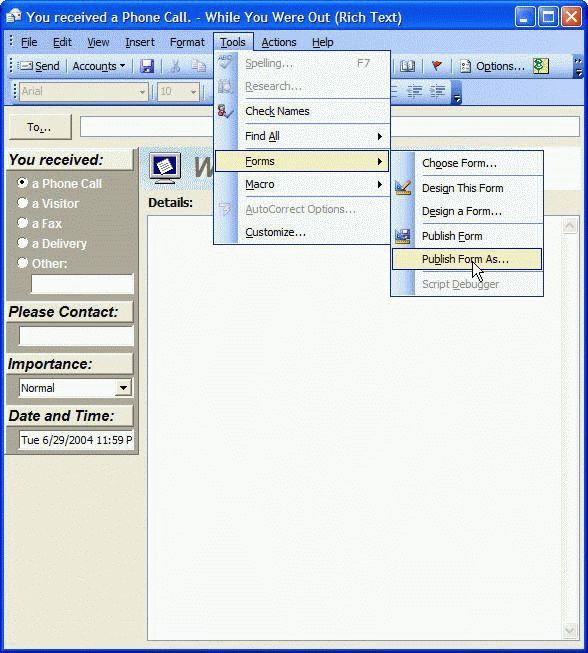
In most cases it won't matter which option you choose, but if you are editing a form, choosing Publish Form is similar to using Save – the original form will be replaced. If this is not your intention, choose Publish form as.
It may ask if you want to publish the forms definition. In most cases, no, you don't want to publish the definition. However, others won't see the form unless they have it published or it's in Exchange Server's organizational forms library, unless you include form definitions.
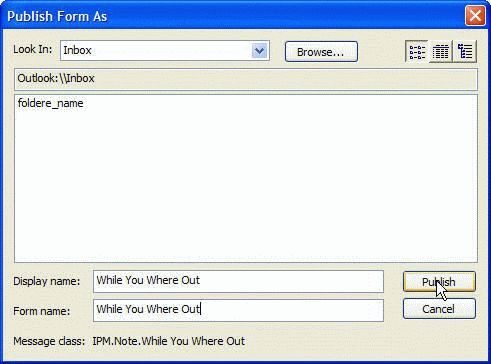
2. Click on the Look in list and find the location where you want to publish the form. You can use any Outlook folder, the personal library or the Organization library, if you use Exchange server.
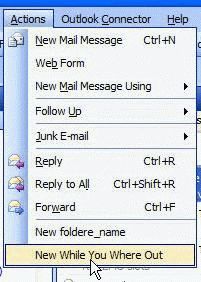
If you choose an Outlook folder you can select that folder's on Actions menu to open the form – published forms are at the bottom of the menu.
3. Type the form name in the Display name and form name fields and press Publish.
When you want to use the form, look for the form on the Actions menu when you have the folder you published it to open.
If you published it to the personal forms library you'll need to browse to find it using the Tools, forms, Open form menu.
If you are sharing the form with other users on your Exchange server, install the form to the Organizational forms library so everyone can use it. To install it to the Organizational forms library, select it from the Look In list. You'll need to open it using Tools, Form, Open Form menu when it's in the Organizational forms library.
Using the custom form for New items
You can easily change the default form used for new items for each item type except Mail.
To do this:
- Right click on the folder name and choose Properties.
- Then select the new form from the General Tab, When posting to this folder use: field.
Now when you click the New button or otherwise create a new item of that item type, it will use the form you selected.
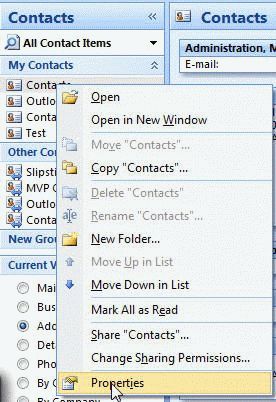
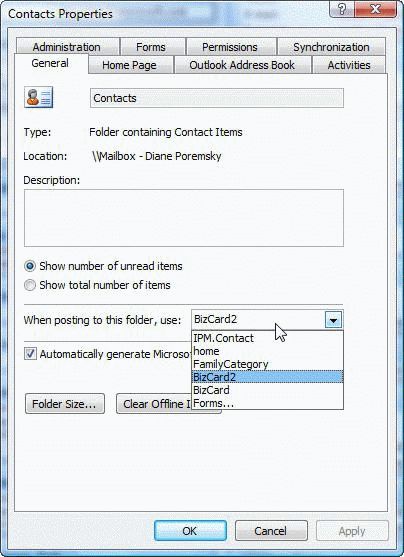
Step 1: Open the properties dialog Step 2: Choose the default form
Apply Custom Forms to Existing Items
To change the existing messages to use the custom form, the easiest way is with DocMessageClass, a free utility.
Note: DocMessageClass does not work with Outlook 2013.
Published January 6, 2011. Last updated on June 16, 2017.