![Diane Poremsky [Outlook MVP]](http://www.outlook-tips.net/images/2014/MVP_BlueOnly.png)
Most, if not all, of these switches will work with all versions of Outlook, including the newest version (currently Outlook 2016). Don't forget to use the correct path to your version of Outlook.exe.
When you're having problems with Outlook you may be told to start Outlook using a specific command line switch.
To do this:
Close Outlook.
At the Start menu, Run command (or open the Run command by pressing Windows Key ( ) + R type:
Outlook /switch
Then click OK to start Outlook. (There is a space between outlook and /.)
This screenshot shows how you enter it, using the /cleanreminders switch as an example.
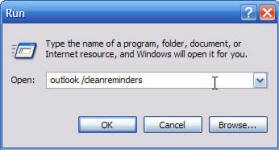
Occasionally you'll need to use the full path to Outlook, then the command line looks like this (using the correct path to your version of Outlook.exe).
"C:\Program Files\Microsoft Office\Office11\Outlook.exe" /switch
Notes:
Before using a command line switch, you need to close Outlook and verify it's closed in Task Manager's Processes tab.
Paths that include spaces between words must be enclosed in quotation marks (") and are case sensitive.
If you use Vista or Windows 7, you can type the command line in the Start Search field on the Start menu, or on the Start screen in Windows 8 and Start menu in Windows 10.
You'll need the full path if you want to create desktop shortcuts using a switch, such as to open Outlook to a specific folder (use the correct path to your version of Outlook.exe):
"C:\Program Files\Microsoft Office\Office11\Outlook.exe" /select outlook:calendar
Frequently used Switches:
This group of switches are the most commonly used switches. (A complete list of switches is in the next section.)
/cleanreminders
Clears and regenerates reminders.
/cleanviews
Restores default views. Use with care as all custom views you created are lost.
/profile profilename
Loads the specified profile. If your profile name contains a space, enclose the profile name in quotation marks.
This switch is useful when there are multiple users of a Windows logon and each has their own Outlook profile. Create desktop shortcuts to load a specific profile – use the following command line in the shortcut, replacing my name with your profile name:
"C:\Program Files\Microsoft Office\Office11\Outlook.exe" /profile "Diane Poremsky"
/profiles
Opens the Choose Profile dialog box regardless of the Options setting on the Tools menu.
/resetnavpane
Outlook 2007 and 2010 only. Resets the navigation pane back to the default when Outlook starts.
/resettodobar
Outlook 2007 and 2010 only. Resets the to-do bar pane to the default settings when Outlook starts.
/safe
Starts Outlook without extensions, Reading Pane, or toolbar customization. Works with all versions.
Can also open Outlook in Safe mode by holding Ctrl key as you click on the Outlook icon
All Switches
/a
Creates an item with the specified file as an attachment.
Usage:
Outlook /a "C:\My Documents\labels.doc"
If no item type is specified, IPM.Note form is assumed. This switch cannot be used with message classes that aren't based on Outlook.
/altvba otmfilename
Opens the VBA program specified in otmfilename, rather than %appdata%\Microsoft\Outlook\VbaProject.OTM. Use this switch when you need to run macros not in your VBAProject file.
/autorun macroname
Opens Outlook and immediately runs the macro specified in macroname.
/c messageclass
Creates a new item of the specified message class, works for any valid MAPI form.
Examples:
- /c ipm.activity creates a Journal entry
- /c ipm.appointment creates an appointment
- /c ipm.contact creates a contact
- /c ipm.note creates an e-mail message
- /c ipm.stickynote creates a note
- /c ipm.task creates a task
/checkclient
Prompts for the default manager of e-mail, news, and contacts.
Starts Outlook and deletes client-based rules. Used by non-Exchange account users.
/cleandmrecords
Deletes the logging records saved when a manager or a delegate declines a meeting. Used by Exchange Server accounts.
/cleanfinders
Removes Search Folders from the Microsoft Exchange server store.
/cleanfreebusy
Clears and regenerates free/busy information. This switch can only be used when you are able to connect to your Microsoft Exchange server.
/cleanprofile
Removes invalid profile keys and recreates default registry keys where applicable.
/cleanpst
Launches Outlook with a clean Personal Folders file (.pst)
/cleanreminders
Clears and regenerates reminders.
/cleanrules
Starts Outlook and deletes client- and server-based rules.
/cleanschedplus
Deletes all Schedule+ data (free/busy, permissions, and .cal file) from the server and enables the free/busy information from the Outlook Calendar to be used and viewed by all Schedule+ 1.0 users.
/cleanserverrules
Starts Outlook and deletes server-based rules. Used only with Exchange server accounts.
/cleansniff
Overrides the programmatic lockout that determines which of your computers (when running Outlook simultaneously) processes meeting items. The lockout process helps prevent duplicate reminder messages. This switch clears the lockout on the computer it is used, enabling Outlook to process meeting items.
/cleansubscriptions
Deletes the subscription messages and properties for subscription features. Used with SharePoint alerts.
/cleanviews
Restores default views. Use with care as all custom views you created are lost.
/designer
Starts Outlook without figuring out if Outlook should be the default client in the first run.
/embedding
Opens the specified message file (.msg) as an OLE embedding. Also used without command-line parameters for standard OLE co-create.
/explorer
Opens the new window in "explorer" mode (link bar on).
/f msgfilename
Opens the specified message file (.msg) or Microsoft Office saved search (.oss).
/firstrun
Starts Outlook as if it were run for the first time.
/folder
Opens a new window in "folder" mode (Navigation Pane off).
/hol holfilename
Opens the specified .hol file.
/ical icsfilename
Opens the specified .ics file.
/importprf prffilename
Launches Outlook and opens/imports the defined MAPI profile (*.prf). If Outlook is already open, queues the profile to be imported on the next clean launch.
/l olkfilename
Opens the specified .olk file.
/launchtraininghelp assetid
Opens a Help window with the Help topic specified in assetid.
/m emailname
Provides a way for the user to add an e-mail name to the item. Use either the full address or let alias resolve. Only works in conjunction with the /c command-line parameter.
Usage:
Outlook.exe /c ipm.note /m test@poremsky.com
Outlook.exe /c ipm.note /m dianep
/nocustomize
Starts Outlook without loading outcmd.dat (customized toolbars). With older versions of Outlook the *.fav file doesn't load.
/noextensions
Starts Outlook with extensions turned off, but listed in the Add-In Manager.
/nopollmail
Starts Outlook without checking mail at startup.
/nopreview
Starts Outlook with the Reading Pane off and removes the option from the View menu.
/p msgfilename
Prints the specified message (.msg). Does not work with HTML.
/profile profilename
Loads the specified profile. If your profile name contains a space, enclose the profile name in quotation marks.
/profiles
Opens the Choose Profile dialog box regardless of the Options setting on the Tools menu.
/recycle
Starts Outlook using an existing Outlook window, if one exists. Can be used in combination with /explorer or /folder. The Outlook shortcut in the Quick Launch bar uses the /recycle switch.
/resetfoldernames
Resets default folder names (such as Inbox or Sent Items) to default names in the current Office user interface language.
For example, if you first connect to your mailbox Outlook using a Russian user interface, the Russian default folder names cannot be renamed. To change the default folder names to another language such as Japanese or English, you can use this switch to reset the default folder names after changing the user interface language or installing a different language version of Outlook.
/resetfolders
Restores missing folders for the default delivery location.
/resetnavpane
Clears and regenerates the Navigation Pane for the current profile. Removes all Shortcuts and Favorite Folders. Has the same effect as deleting profilename.xml in your user directory.
/rpcdiag
Opens Outlook and displays the remote procedure call (RPC) connection status dialog.
/s filename
Loads the specified shortcuts file (.fav). Use to load *.fav files created in older versions of Outlook.
/safe
Starts Outlook without extensions, Reading Pane, or toolbar customization.
/safe:1
Starts Outlook with the Reading Pane off. New to Outlook 2003.
/safe:2
Starts Outlook without checking mail at startup. New to Outlook 2003.
/safe:3
Starts Outlook with extensions turned off, but listed in the Add-In Manager. Outlook 2003 only.
/safe:4
Starts Outlook without loading Outcmd.dat (customized toolbars) and *.fav file. Outlook 2003 only.
/select foldername
Starts Outlook and opens the specified folder in a new window.
Usage:
"C:\Program Files\Microsoft Office\Office11\Outlook.exe" /select outlook:calendar
outlook /select "outlook:Inbox\Old Messages"
/sniff
Starts Outlook and forces a detection of new meeting requests in the Inbox, and then adds them to the calendar.
/t oftfilename
Opens the specified .oft file.
/v vcffilename
Opens the specified .vcf file.
/vcal vcsfilename
Opens the specified .vcs file.
/x xnkfilename
Opens the specified .xnk file.
Paths to Outlook.exe
With Outlook 2010 and older, the path to Outlook.exe was pretty much the same between versions: just change the Office version number in the path to match your version. with the addition of 64-bit Office, 64-bit Windows, and Click-to-run (C2R), there up to 4 possible default paths for each version of Outlook.
Most users will have the Click to Run (C2R) version.
Outlook 2016 C2R 32bit
C:\Program Files (x86)\Microsoft Office\root\Office16\Outlook.exe
Outlook 2016 C2R 64bit
C:\Program Files\Microsoft Office\root\Office16\Outlook.exe
Outlook 2016 MSI 64bit (Volume licenses only)
C:\Program Files\Microsoft Office\Office16\Outlook.exe
Outlook 2013 C2R 32bit
C:\Program Files (x86)\Microsoft Office\root\Office15\Outlook.exe
Outlook 2013 C2R 64bit
C:\Program Files\Microsoft Office\root\Office15\Outlook.exe
Outlook 2010
C:\Program Files\Microsoft Office\Office14\Outlook.exe
Outlook 2010 on 64-bit Windows
C:\Program Files (x86)\Microsoft Office\Office14\Outlook.exe
Outlook 2007
C:\Program Files\Microsoft Office\Office12\Outlook.exe
Outlook 2007 on 64-bit Windows
C:\Program Files (x86)\Microsoft Office\Office12\Outlook.exe
Outlook 2003
C:\Program Files\Microsoft Office\Office11\Outlook.exe
Outlook 2003 on 64-bit Windows
C:\Program Files (x86)\Microsoft Office\Office11\Outlook.exe
Published December 13, 2003. Last updated on October 25, 2020.