![Diane Poremsky [Outlook MVP]](http://www.outlook-tips.net/images/2014/MVP_BlueOnly.png)
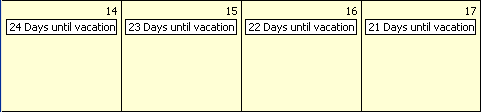
Outlook doesn't support creating calendar items that countdown (or count up) to a specific date. You'll need to create each item individually and the easiest way to do this is outside of Outlook and import the file to the Calendar. You can use this method with any version of Excel and Outlook, although some steps might be slightly different in older versions of either program.
If you have another spreadsheet program, such as Works, you may need to save it as a CSV or text file to import into Outlook.
Create your series in a spreadsheet program
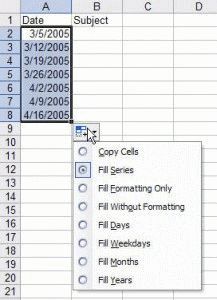 Excel makes it very easy because it allows you to drag and fill cells in a series, changing the numbers in each row.
- At the very least you need two columns, Date and Subject. (Outlook uses Start Date, not Date as used in my examples, and you can save a step if you use Start Date.)
Tip: A Categories field will make it easier to delete the items if you make a mistake when importing.
If you want to use other fields, create one sample record in an new calendar folder and export it to Excel so you know what fields you need. This will eliminate the need to map fields during the import process.
- To begin with "today", press Ctrl+; (semi-colon) in the first data row of the date column.
- Select the cell and drag down to fill the column with consecutive dates, stopping at the date you are counting down to.
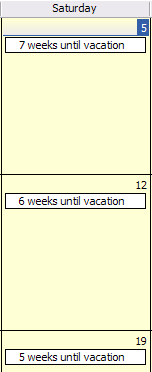
Common Excel tricks such as entering two non-consecutive dates in a column and dragging allows you to create a pattern, such as weekly (as shown in the screenshot) or every other day. (You can use this with birthdays too.)
If the fill doesn't use a series, click on the Smart tag and choose series.
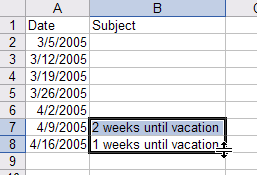
- Go to the last date and enter your subject line. Use a number as the first or last character and Excel will complete the series when you drag. Either type the subject line twice or drag it up one cell and change the 0 to 2, as I've done in the screenshot.

- Select both cells in the subject column and drag up. Excel will complete the series.
- Save the workbook, choosing CSV format, then close it

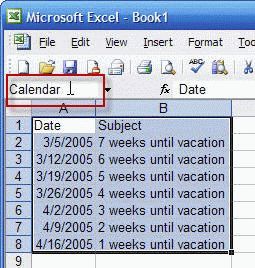
Note: you can save the workbook in Excel format or CSV but if you use Excel format you need to create a named range for your data. Because using CSV is basically fool-proof when importing from a spreadsheet, I've updated the steps to use CSV.
When you use named ranges, you need to verify that all data you want to import is within the named range; using CSV format automatically includes all fields in the sheet. There are situations where it makes sense to use named ranges, such as if you have fields in the spreadsheet that will not be imported. If you need to import from multiple sheets in the same workbook, using named ranges will save a couple of steps.
Now it's time to import it into Outlook.
- Select File, Import and Export
- Select Import from another program or file.
- Select the program or file type.
If you used CSV, choose "Comma Separated Values (Windows)".
If you saved the file in Excel (*.xls) format, choose Microsoft Excel.
- Browse for the file. (If the file is still open in Excel, it will cause an error.)
- Select the Calendar folder you want to Import the file into.
- Outlook doesn't recognize Date, so I need to drag it to Start Date and Outlook adds it to the Mapped From column next to Start Date.
- Click Finish to import your items.


Other Uses
You can use this method with birthdays so the subject contains the person's age:
Mark is 1 Mark is 2 Mark is 3
If you want the appointment to say "Mark is 1 today" you'll need to learn how to use a concatenate formula and Copy, then Paste Special, Values to create your subject field. (=CONCATENATE(cell,cell).
Published May 13, 2011. Last updated on October 25, 2020.