![Diane Poremsky [Outlook MVP]](http://www.outlook-tips.net/images/2014/MVP_BlueOnly.png)
In Microsoft Outlook, I used to be able to click on "File", and one of the options was "Send to Bluetooth". When you clicked on the menu, available Bluetooth devices would pop up and you could select which device to send it to. I used this option to send appointments and contacts to my cell phone. I have never installed any special phone transfer or sync software. The "Send to Bluetooth" option is no longer available since my computer crashed and I reloaded Office. Could someone please show me how to get it back? I tried the SMS add-in and this is not what I was looking for.
In order to have the Send to Bluetooth option, you need to install the correct Bluetooth stack for your computer. The basic Bluetooth capabilities in Windows offer only dial-up networking support (DUN).
Note that not all Bluetooth drivers will add the Send to Bluetooth command.
- Find the drivers created for your Bluetooth model. You do not want to use the generic Microsoft drivers. Start your search at the support site for your computer manufacturer.
- Uninstall the Microsoft drivers from Device manager. (At Start menu, Run you can type devmgmt.msc to open Device manager.) Uninstall Bluetooth Radio and anything else that says Bluetooth.
- Now disable Microsoft's drivers so that they won't re-install. To do this, go to C:\Windows\inf. Find bth.inf and rename it to bth.inf.old. Do the same to bth.PNF.
- Reboot the computer. After you restart, Windows may want to install your Bluetooth device. Cancel out of any new device found dialogs.
- Run your driver software to install the correct drivers. If you are asked to configure the Bluetooth services, select all available.
- If asked if you'd like to detect any Bluetooth devices.. choose No.
- Restart the computer.
- After rebooting, go back to the device manager and see if there are any new devices from the Bluetooth installation that may not be correctly installed (yellow exclamation point). Depending on the capabilities of your computer, you may need to re-enable the Windows drivers to get some features working. You can re-enable the Windows Bluetooth drivers once the system has accepted the new Bluetooth drivers as the primary driver.
- Now you can enable Bluetooth services. Open your newly installed Bluetooth software to see if those services are enabled/available.
- Create a partnership between the computer and phone.
You should now see a "My Bluetooth Places" in My Computer. Open this, and you will be able to browse your phone/select various services to use. Before transferring any files, keep in mind that you will need to set the location to put the file on the phone. Generally speaking (varies by phone) on the phone, you'll select Menu, Tools, Bluetooth, Options, Settings, Exchange FTP folder.
Outlook 2003 (possibly other versions) should have an option under File called "Send to Bluetooth" once the proper Bluetooth driver is installed. Your Bluetooth device should be listed in the menu. You can transfer all your contacts in Outlook by selecting them all and using the File, Send to Bluetooth.
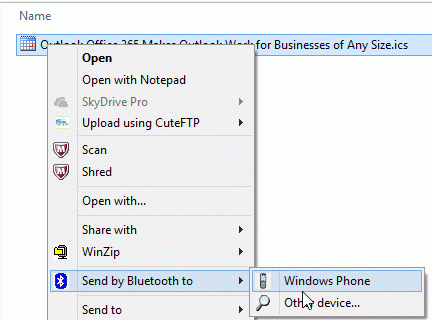
The Send to Bluetooth menu should also be present when you right click on a file in Windows Explorer. Keep an eye on the phone when sending files to the phone as you may need to hit OK on the phone to allow for files to transfer.
Published May 13, 2011. Last updated on October 25, 2020.