![Diane Poremsky [Outlook MVP]](http://www.outlook-tips.net/images/2014/MVP_BlueOnly.png)
If you haven't already figured it out, using date and time shortcuts are a favorite of mine.
Say good-bye to using the time and date pickers! When entering dates or times in Outlook forms, tab to the date and time fields and type it in, it's faster than using the date picker.
How is it faster to type 8/21/03, when you have to think about what date is 5 weeks away? How is typing "5:30 PM" faster than selecting it? One word: Shortcuts. Type 5w in the start field, 530 in the time field. Outlook does the rest.
Outlook accepts shortcuts, like 4d (for 4 days from now) or 115p (for 1:15 PM), as well as formulas: 3/14 + 12d (converts to Mon 3/26/2007).
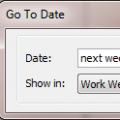
The date and time fields also support natural language phrases. Type "christmas" and Outlook knows it's Dec 25. Week after next week? Three weeks from tomorrow? It's a lot of typing, but Outlook knows.
Instead of typing "three weeks from tomorrow", you could save a few key strokes and type in 3w + 1.
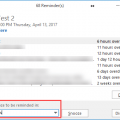
Although your choices are limited, shortcuts will also work in the snooze field – just type a number for the number of minutes, or add a d if you want to snooze it for days.
Say you need to make an appointment for 3 weeks after 8/12. You can use one of two shortcuts:
Type: 8/12 +3w
Or type: 8/12, Tab (or Enter) then Shift+Tab back and enter 3w.
- Date shortcuts include: d (day), mo (month), w (week), y (year).
- Time shorts are m (minute), h (hour), a (am), p (pm). A or p aren't always needed, although it's just one keystroke to avoid retyping times.
- Use a . (period) in place of the colon, or skip it. Outlook converts 122 to 1:22 PM.
Task Dates
Need to enter different start and due dates for tasks? Enter the date (you can use date shortcuts) in the due field then either select the start date from the drop down or enter just the day of the month, ie, 13. Outlook will convert the number to 1/13/2006 for you. You'll have different Due and Start dates and Outlook won't try to change them.
If you are having problems setting different dates (or want Outlook to calculate the date range), enter the start date first and backup to the due date field then type over the due date. If the due date is 7 days from the start date, type 7d in the due field and Outlook will calculate it for you. (Use Shift+Tab to reverse if you are using Tab to move around.)
Published March 7, 2007. Last updated on June 17, 2011.