![Diane Poremsky [Outlook MVP]](http://www.outlook-tips.net/images/2014/MVP_BlueOnly.png)
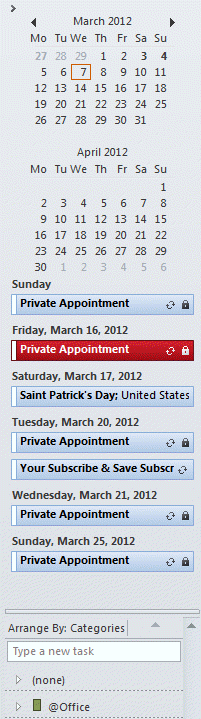
You can show more navigation calendars in the To-Do Bar on the right or in the Calendar navigation pane on the left.
To change the number of calendars visible on the To-Do Bar, right click on the To-Do Bar title and choose Options from the menu and change the number of calendars shown. (In Outlook 2010, right click above the navigation calendars where a title bar would be, if it had one.) You can also access the To-Do Bar Options dialog from the View menu (Outlook 2007) or View ribbon (Outlook 2010).
In Outlook 2007, this setting also controls the calendars in the navigation pane. In Outlook 2010, drag the divider bar up or down to show or hide calendars above the list of calendar folders.
Finally, if you only need to see extra calendars “now” and want to keep your current calendar settings, drag the vertical divider inward by one or more calendar widths – this will expand the number of columns of navigation calendar you see.
Published January 11, 2011. Last updated on April 17, 2013.