![Diane Poremsky [Outlook MVP]](http://www.outlook-tips.net/images/2014/MVP_BlueOnly.png)
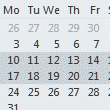
Would you like to print a "monthly" calendar that runs mid-month to mid-next-month? Begin by adjusting the monthly calendar so it displays the first week you want printed at the top of the screen.
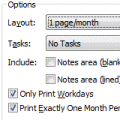
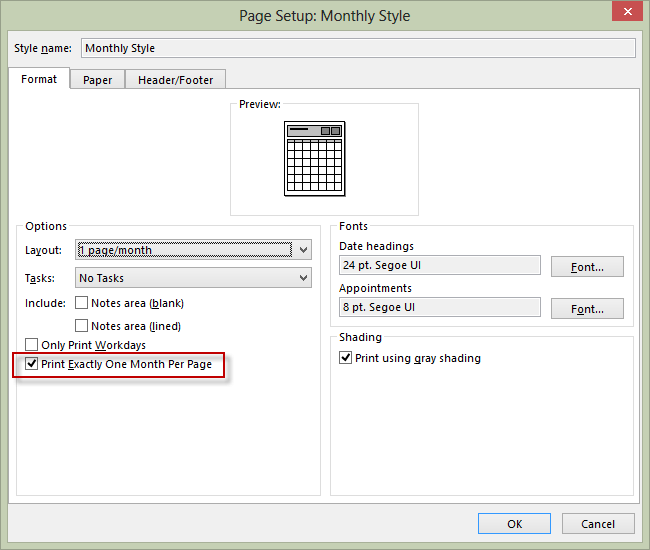
Next, open the print dialog. If you see a full month in print preview, go to Page Setup and uncheck the option to print exactly one month per page.
In Outlook 2010 and 2013, click Print Options, then Page Setup.
Verify the desired start date is in the Print range: Start field (on Page Setup dialog in older versions; on Print Options in Outlook 2010 and 2013).
In older versions, you'll always print 5 weeks; in Outlook 2010 and 2013, you'll print either 5 or 6 weeks, depending on the length of the current month. You can sometimes force Outlook to print 5 weeks: before opening the print dialog, either select a month that displays in 5 weeks then scroll up or down until the desired first week is displayed at the top of the screen or select 5 weeks in the navigation calendar. In my experience, its not foolproof and I can print 5 weeks about half the time. The rest of the time, you're stuck with a 6 week calendar.
Published January 19, 2011. Last updated on June 18, 2013.