![Diane Poremsky [Outlook MVP]](http://www.outlook-tips.net/images/2014/MVP_BlueOnly.png)
When using the save and send option in Word, Excel and the Send To command in other applications, Outlook creates a new e-mail but doesn't add your signature. This also happens when right-clicking on a document and using the send to mail recipient function.
A user wanted to know why "Outlook doesn't treat these as new e-mails and why the signature is not added by default."
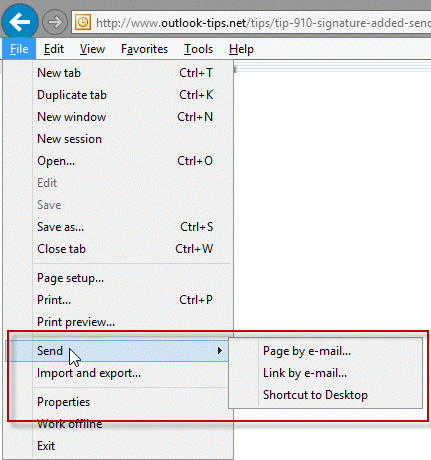
They are new emails, but the signature isn't added because it's how the message is created – the new message form is called after the point when Outlook would add the signature.
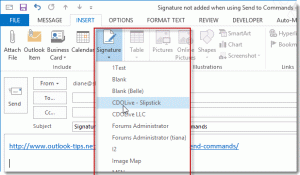
You'll need to insert the signature yourself. In Outlook 2013, 2010, 2007, insert a signature from the Insert ribbon. In older versions, it's on the Insert menu.
Published September 8, 2011. Last updated on June 4, 2014.