![Diane Poremsky [Outlook MVP]](http://www.outlook-tips.net/images/2014/MVP_BlueOnly.png)
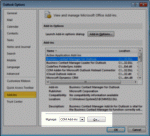
Do you get a "You've Got Mail" announcement in Outlook 2003 and you aren't using AOL?It means you have a Toshiba computer and have an application called Toshiba Voice enabled.In Outlook 2003 and older, go to Tools, Options, Other, Advanced Options, Add-In Manager and remove the check from "Mail Speak (TOSHIBA)".In Outlook 2007, look in Tools, Trust Center, … [Read more...] about Tip 323: You've Got Mail Sound
Tip 322: Imported Appointments are 'Busy'
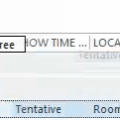
In a long ago tip, I explained how to create a count down calendar - but when it's imported, the events are shown as busy in the calendar. A reader asksCan that be changed so I am shown as 'available'?Of course, and you have two ways you can do it.The first: the easiest for 'after the fact' changes is to use a List view and group by the Show time as field. Then … [Read more...] about Tip 322: Imported Appointments are 'Busy'
Tip 320: SBS2003 and Account Order
A common complaint among some Exchange server users is that their Exchange account keeps getting reset as default. This is a "known issue" if the Exchange server is running on Microsoft Small Business Server 2003.There are several ways to correct the problem, including removing the PRF (Outlook profile file) from the logon script or creating a new profile using a very … [Read more...] about Tip 320: SBS2003 and Account Order
Where are my Outlook Files?

Outlook stores your email (and attachments), calendar and contacts together in one file that uses the extension "PST". Unless you tell Outlook to use a different pst stored somewhere else, Outlook creates the *.pst under your Windows user account directory. In Outlook 2010 and Outlook 2013, the default *.pst location for POP3 accounts in new profiles is My Document\Outlook … [Read more...] about Where are my Outlook Files?
Tip 319: Using Macros
In a tip a couple of weeks ago, I told you how to use a VBA macro to display a dialog asking where to store the Sent message. Some people are wondering why it works until they close Outlook. It's macro security. The easiest way to make it work is to go to Tools, Macro, Security and set it on Medium. We recommend Medium over Low so that unknown code isn't running … [Read more...] about Tip 319: Using Macros