![Diane Poremsky [Outlook MVP]](http://www.outlook-tips.net/images/2014/MVP_BlueOnly.png)
Did you know you aren't limited to using specific view formats on specific folders? Yes, you can create a Day/Week/month view on other folders. While it's not a good view for your Inbox, it works well on Tasks, as does Timeline. Select the folder you want a new view for and open the Define views dialog from the View menu or the bottom of the Advanced toolbar's Current View … [Read more...] about Tip 97: Using Custom Views
Tips Archive
Tip 96: Hide 'Type a question'
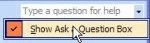
Hide the Type a question combobox on your Office toolbars using the customize menu. Open the Customize dialog using Tools, Customize then right click on Type a question and remove the checkbox. Repeat for each window you want to remove it from. … [Read more...] about Tip 96: Hide 'Type a question'
Tip 95: Locating Read Receipts
Outlook stores read receipts in the top level of your message store as a hidden message. If you use Send immediately, the receipts are returned immediately, otherwise, the next time you check for new mail, Outlook sends the receipts. If you don't have access to the SMTP server used by the account when you send/receive, you may receive an error when the receipt attempts to … [Read more...] about Tip 95: Locating Read Receipts
Tip 93: Outlook 2003, Junk Email and Rules
Update: Outlook 2003 SP1 runs rules after junk e-mail filter. Update your installation if you haven't already. If you use Outlook 2003 and have multiple POP3 accounts you may use Rules to move the messages to their own folders. However, when you use rules to move message, the new Junk Email filter doesn't remove the junk mail from those accounts. To avoid this problem, … [Read more...] about Tip 93: Outlook 2003, Junk Email and Rules
Tip 92: Create a Task or Appointment From a Message
You can move a message to Tasks or Calendar folder to create a new item one of three ways: Drag and drop on the folder. (In Outlook 2003, drop on the buttons at the bottom of the Navigation Pane.) This adds the message body to the note field of the new item. Right click, drag and drop to a folder. Use this method to control how the message is attached to the item - Copy … [Read more...] about Tip 92: Create a Task or Appointment From a Message