• Skip to main content
  • Skip to primary sidebar
  • Skip to footer

Outlook Tips

Learning Microsoft Outlook One Tip At A Time

Diane Poremsky [Outlook MVP]

  • Home
  • Tips Archive
  • How to...
  • Beginner
  • Outlook.com

Tip 1104: How to create "Not" rules

Outlook's rules are great… well, maybe good. Or just OK… I don't deny that there is room for improvement, but you can do a lot with the rules that are available. One frequent question is how to create a NOT rule – how to apply a rule to all mail that doesn't meet a condition.

My Outlook provides a condition "sent only to me". I need the exact opposite condition, i.e. "NOT sent only to me". This includes all e-mail sent to me AND someone else, e-mail sent to mailing lists that I am subscribed to (willingly or not) etc. I want to see only e-mails that are "sent only to me" in my Inbox, so I need a rule to move all e-mails "NOT sent only to me" somewhere else.

How can I configure Outlook to move all e-mails "NOT sent only to me" to a specific folder?

NOT rules are set up as exception: Apply the rule to all mail, perform the action, except when it meets this condition.

To create an Exception rule, you'll start with a blank rule.

  1. On the condition page, click Next without selecting a condition. Outlook will warn you that the rule applies to all messages. Click OK to move on to the Actions page.
  2. Choose your Actions then click Next.
  3. Now choose your Exceptions. To create a rule that does not apply to messages sent only to "me", choose Except if sent only to me. Click Next and complete your rule.
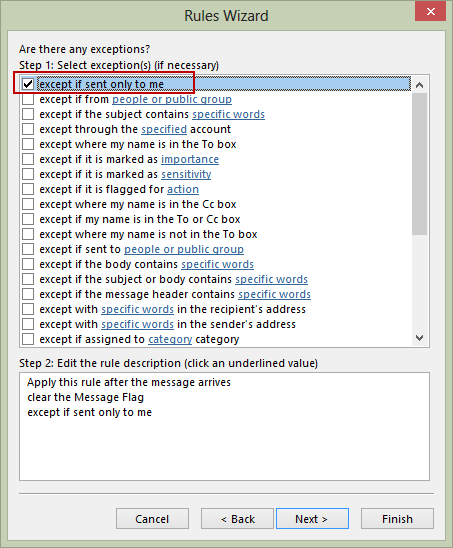
Create an exception to a rule

Published September 9, 2013. Last updated on September 6, 2013.
Share this:

  • Twitter
  • Facebook
  • LinkedIn
  • More
  • Print
  • Tumblr
  • Reddit
  • Pocket
  • Pinterest

Related posts:

A question came up after my last tip about flagging messages to remind you they were sent as a BCC. Peter asked "Getting it tTip 305: More on Flagging BCC Messages Stephen asks:  I have subscribed to and receive several automated messages (the weather etc.) on a daily basis.  ReturniTip 306: Run Rules Later A user recently switched from POP to Exchange Server. When accessing his email in Outlook via POP, a folder would autoexpand wheneTip 907: Rules and Expanding Folders Create a rule to reply with a templateHow to create an Autoreply rule
Subscribe
Notify of
0 Comments
Newest
Oldest Most Voted
Inline Feedbacks
View all comments

Primary Sidebar

Search OutlookTips

Training and one-on-one assistance

Do you need help setting up Outlook or want some one-on-one training? I'm available for hire. See Training and one-on-one assistance for fees and to check availability.

All-Time Most Popular Posts

  • Windows 7 and Vista Start Search field
    How to start Outlook in safe mode
  • outlook.com icon
    Delete a message stuck in Outlook's Outbox
  • How to use Outlook's Command line switches
  • Use Cleanviews switch to reset all views
    How to Reset the View on Outlook folders
  • Where are my Outlook Files?
  • Folder paths
    How to Find Folder Paths in Outlook Mailboxes
  • How to use Scanpst.exe to repair Outlook data files
  • Outlook's Missing Holidays
  • backstage page
    Where is File tab in Outlook?
  • Icons found in the Inbox, Message Headers, and Toolbars

Footer

Recent Posts

  • Log into multiple Outlook on the web accounts
  • Keeping Hackers out of Microsoft accounts
  • Microsoft Account Closure Email
  • Outlook on the web Quick Actions moved to the right
  • Automatically sign out of Outlook.com

Recent Bug List

Microsoft keeps a running list of issues affecting recently released updates at Fixes or workarounds for recent issues in Outlook for Windows.

Office Update History

Update history for supported Office versions is at Update history for Office

Resources

Ask questions and share your knowledge in Outlook Forums.

You Might Like

Where is File tab in Outlook?
Using Two-factor authentication
Where are my Outlook Files?
How to use Outlook's Command line switches

© 2003–2026 ยท Outlook Tips

wpDiscuz
You are going to send email to

Move Comment