![Diane Poremsky [Outlook MVP]](http://www.outlook-tips.net/images/2014/MVP_BlueOnly.png)
Many times users are told to "reset the view" to fix problems with the display in Outlook but they don't know how to do this. There are two ways top do this.
Outlook 2010 and up: look on the views ribbon for the Reset Views button to rest a single view or use the /cleanviews switch to reset all views.
Reset All Views in All Folders
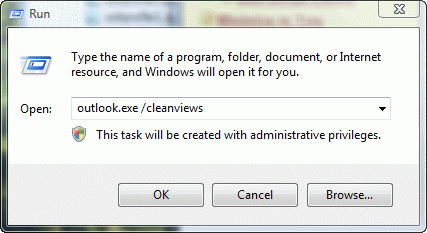
First, you can reset the views for the entire mailbox. When you open Outlook using the /cleanviews switch you will wipe out all custom views and return all default views to "factory default". Sometimes its necessary, but sometimes just resetting the view for the current folder will work. If you aren't using custom views, you can use the /cleanviews switch without worry.
The /cleanviews switch will wipe out all custom views and return all default views to "factory default".
To use this method, close Outlook. Go to Start menu > Run (or Windows key + R) and type Outlook.exe /cleanviews then click OK.
Reset a View on a Specific Folder
The second method is less intrusive – it just resets the view on a specific folder or class of folders.
Outlook 2010 and Up
Outlook 2010 and up: look on the View tab for the Reset View button.
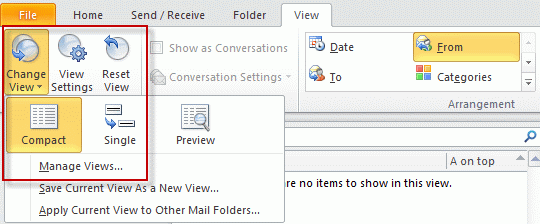
A Reset button is also on the View Settings dialog (formerly the Current view dialog, below), which can be opened from the View ribbon, View Settings button or by right clicking on the field names visible in a view and selecting View Settings (Method 3, below).
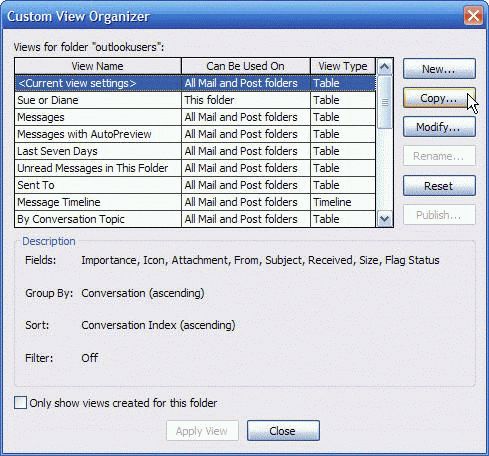
You can expand the Change View menu and select Manage Views (formerly the Define Views dialog, below), then select the View by name to reset the view globally or select <Current view settings> to reset the view on the current folder only.
Create new views, edit views, or delete custom views using the Manage Views dialog.
Outlook 2007 and Older
There are 4 different ways to do this. Each version of Outlook supports these methods but the View menus are slightly different between versions–Microsoft moved the Customize and Define views commands to different locations on the View menu for each version. (The screenshots are from Outlook 2007. Accessing the Custom View Menu has screenshots from Outlook 2003. )
Step 1: Open the Customize View or Define Views Dialog
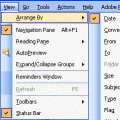
- Browse the View menu to find the Customize command

- Browse the View menu to find the Define views command
- Click or Right click on the field names in a view and choose Custom (or Customize, if using a one line view).
- Browse the View Selector on the Advanced toolbar for Define views. If the Advanced toolbar is not visible, go to View, Toolbars, and select it.
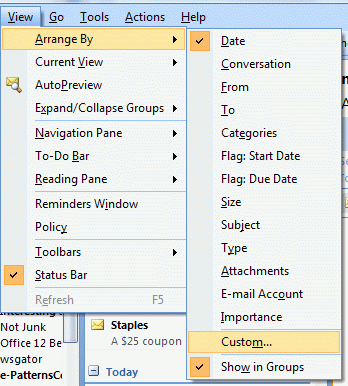
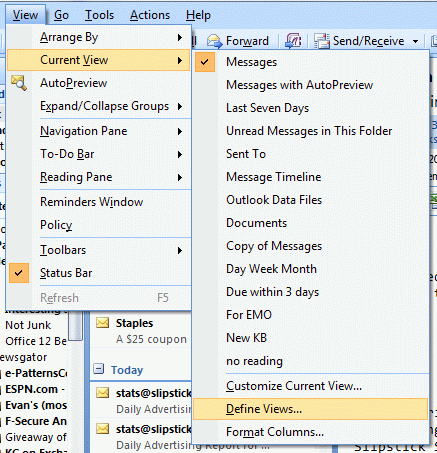
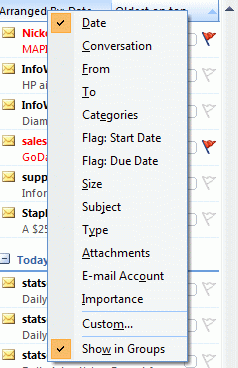
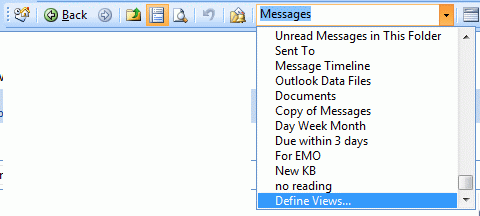
Step 2: Click Reset button
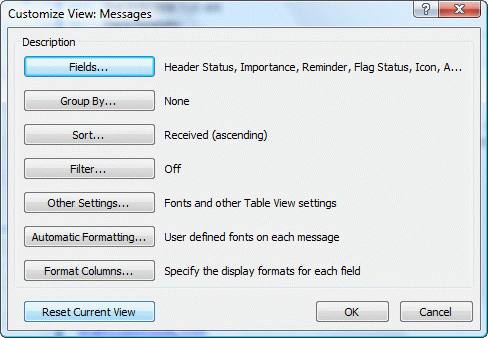
Once you open the customize or define views dialog, click on the Reset button to reset the view.
With the Customize View dialog, hit Reset button to reset the view on this folder only.
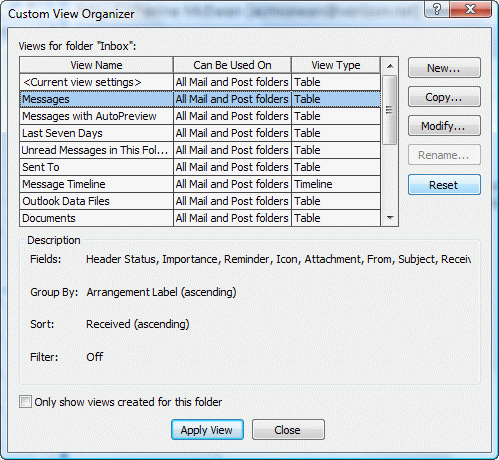
When using the Define Views dialog, select the view by name to reset it on all folders that use that name or choose <Current view settings> to reset it on the current folder only.
Define Views or Customize Views?
What is the difference between Define Views and Customize views?
Define views brings up the view selector, so you can see all views associated with the folder. You can use this menu to make new views, delete views or reset any view. When you reset the view by selecting the name the view is reset on every folder that uses that view. Selecting <Current view settings> resets just the view in the current folder and creates a "one-off view" – a folder-specific view of the same name as the master view, but its not the exact same view as used by other folders. This view is specific to the folder and changes made to the view in other folders will not affect this folder. Using the /cleanviews switch cleans out all of these "one-off views".
Customize brings up the customize dialog and it affects only the view used in current folder.
Which is better?
If you made a change to a view – like changing the sort order – resetting the Current view is usually OK.
If you are having problems with a view, use Define Views and reset the view by name. This will restore the original view in all folders that are not "one-offed". Also use the Define views dialog if you need to delete views or want to edit a view and have it apply to all folders that use that view.
If resetting the current view or the default view doesn't fix your problem, you need to use /cleanviews.
You can avoid many view problems by not causing one-offed views. If you need to customize a view, copy the current view (in Define views) and customize the copy and apply it to the folder.
Accessing the Custom View Menu has additional information and screenshots from Outlook 2003.
Published May 16, 2011. Last updated on May 5, 2017.