![Diane Poremsky [Outlook MVP]](http://www.outlook-tips.net/images/2014/MVP_BlueOnly.png)
This is really a Word problem and since Word is also the Outlook email editor, I’ll mention this handy (and sometimes annoying) feature.
A user asked: "When typing ==== then hitting return, Outlook puts in a double line. This line cannot be selected, formatted, or deleted. Turning borders off moves the line. Selecting all text before and after and hitting delete moves the line. "
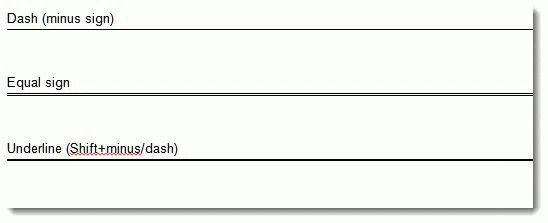
This is an Automatic formatting option in Word. Along with double underlines, it also inserts full lines for dashes (—) and underscores ( ___ ) anytime you type the character three times in a row then press Enter.
If you hit Ctrl+Z as soon as it changes, it will undo the line. To disable this feature, go to Tools, Options, Spelling tab, Autocorrect options. It’s controlled by the Autoformat as you type tab – Border lines option.
Published December 18, 2009. Last updated on October 31, 2011.