![Diane Poremsky [Outlook MVP]](http://www.outlook-tips.net/images/2014/MVP_BlueOnly.png)

If you attempt to send a message that is too large for your mail server you may be unable to delete it from the Outbox. If you try to open it (to remove attachments) or delete it, an error will say that Outlook has begun transmitting the message.
We have three methods listed below that can be used to remove the stuck message. The first two methods are the easiest and either should work for most users.
The solutions on this page are for messages you can see in your Outbox. If there is an invisible message Outlook keeps trying to send, see Delete Stuck Read Receipts using MFCMAPI for the steps needed to delete the hidden stuck message.
Work Offline
The first thing you should try is setting Outlook offline, then wait about 5 minutes or so before trying to delete the stuck message. Or, close Outlook after setting it offline and reopen. Look for the Work Offline command on the Send /Receive menu in current versions of Outlook.
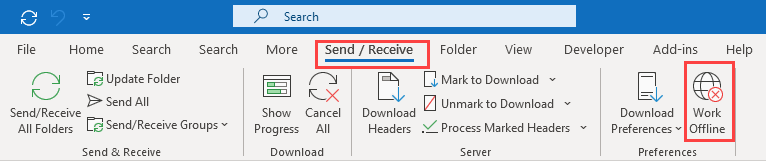
Disconnecting from the network will have the same effect. If you are using Wi-Fi, disable it. In current versions of Windows, click on the network icon in the the notification pane or notification bar and disconnect from your network. If you're using wired internet, either disconnect the network cable or disable the card in the Control Panel's Network and Sharing Center > Change Adapter Settings. Right click on the network card and choose Disable. Wait a few minutes for Outlook to complain about the lack of network access or restart Outlook, then delete the message.
It can take Outlook a few minutes to shut down the spooler, so waiting is important!
If you are unable to delete the message while in offline mode or cannot go into offline mode, you'll need to change your default delivery location. Note that this option should be rarely needed – if you are patient and wait a few minutes for Outlook to stop the message spooler, or close Outlook and restart it in offline mode, in almost all cases, the stuck message will delete without issue.
Change Default Delivery Location
This method only works with POP3 accounts.
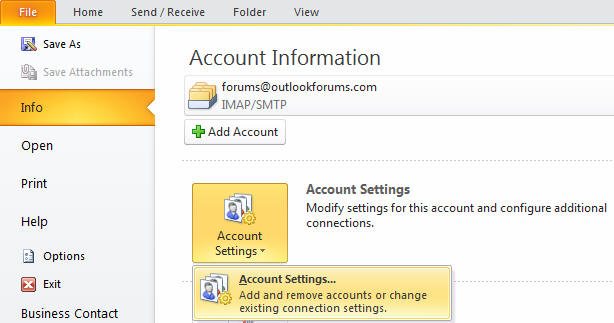
- Outlook 2010 and newer: Open File, Account Settings dialog
Outlook 2007: Go to Tools, Account settings

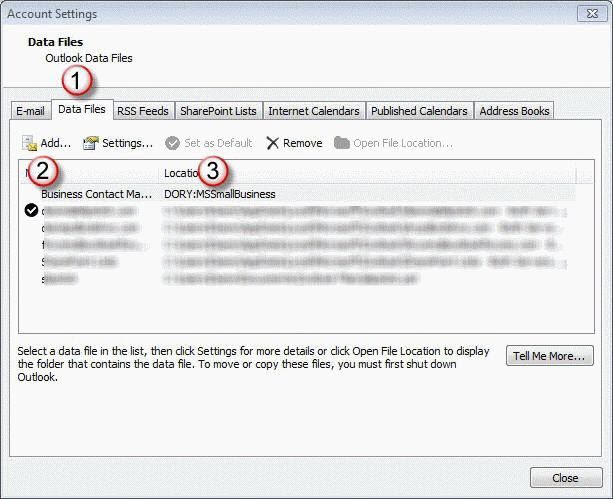
- Select Data Files tab (1) then click Add (2). Create a new PST for your profile then select it and click the Set as Default link (3).
- Close Outlook then restart it.
- Show the folder list, using Ctrl+6 if necessary, and find the old Outbox. Delete the message.
- Repeat steps 1, 2, and 3, restoring the original pst as the default delivery location.
- Show the folder list and move any new messages from the new pst to the original pst.
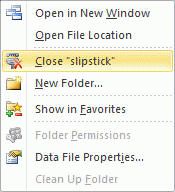
- Right click on the new folder's name and Choose Close to remove it from your profile.
Find the Message using Instant Search
Users with older versions of Outlook installed on Windows 7 or Vista and Desktop Search configured to search Outlook data may be able to delete the stuck message using Bill's method. This will not work with Windows 8 and newer or with current versions of Outlook.
Messages deleted using this method are permanently deleted and bypass the Deleted Items folder.
- Close Outlook and wait a few minutes for it to close completely.
- Type outbox in the Start menu's search field.
- Wait for Search to finish then find the message, select it and press Delete
Search may find a lot of messages. Using store:mapi outbox as your search terms may reduce the number of results and make it easier to find the stuck message.
Outlook 2011 for Mac
The above instructions are for Window's Outlook only. "loti " is an Outlook 2011 user said the following steps work in Outlook 2011.
- Right click on message in outbox, choose “open message”
- Remove the attachment
- Press send
It then re-send the message without attachment (3kB instead of >30MB) — end of story. Phew!
Brian uses this method:
Close out look, hold down shift button while reopening outlook. Go to out box and delete the “stuck” message
If the Outbox is not visible, initiate a send and receive and open the Progress dialog. Click the little x at the right of the entry to stop the progress. The Outbox should now be visible in message list and you can remove the attachments or delete the message.
If you are unable to delete the message while in offline mode or cannot go into offline mode, you'll need to change your default delivery location.
Note that this option should be rarely needed – if you are patient and wait a few minutes for Outlook to stop the message spooler, or close Outlook and restart it in offline mode, in almost all cases, the stuck message will delete without issue.
Published September 16, 2004. Last updated on June 19, 2021.