![Diane Poremsky [Outlook MVP]](http://www.outlook-tips.net/images/2014/MVP_BlueOnly.png)
Is there an easy way to add a date stamp to the Notes field in Contacts?
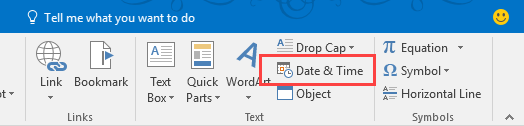
Sure. Outlook for Windows desktop has a Date & Time command on the Insert tab in all Outlook Items except (sticky) Notes. This is the same Date & Time command found in Word and it supports the same keyboard shortcut: Alt+Shift+D to insert the date (use Alt+Shift+T for time) using the default date and time formats. Select all (Ctrl+A) then Ctrl+Shift+F9 to unlink the fields so they won't automatically update. (The keyboard shortcut doesn't work in sticky notes or when the Notes field is plain text.)
To choose your format, open the Date & Time dialog, select the desired format and click the Default… button. When you use Alt+Shift+D keyboard shortcut, this is the date (and/or time) format that will be inserted. Note: The date-only formats work only with the Date shortcut, the six that include the time only work with the Time shortcut. You can set a default for each shortcut.
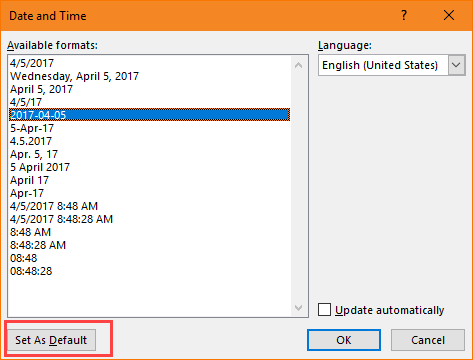
If you want to use a different date format in a single message, you'll need to either open the dialog and double click on it or just type it in.
Because Outlook uses Word as the editor, the default date format is shared between Outlook and Word; you can't use one default format in Word and a different one in Outlook. The keyboard shortcut works in both Outlook and Word.
If you prefer using a macro, this simple macro will add a date & time stamp at the top of the Notes field. Add a button for it on the ribbon or QAT. This will work with any Outlook item type (including "sticky notes").
Sub DateStampTop()
    Dim objApp As Outlook.Application
    Dim Item As Object

    Set objApp = Application
    Set Item = objApp.ActiveInspector.CurrentItem
    Item.Body = Format(Now(), "MMM dd, yyyy h:mm AM/PM") & vbCrLf & vbCrLf & Item.Body
End Sub
You can use any date format and separators of your choice. Note that mm for minutes only works following h, otherwise, use n for minutes. (Only AM/PM are case sensitive; I use capital M for the month out of habit.)
| Description | Valid Format | Example |
|---|---|---|
| Day of week | ddd or dddd | Sun or Sunday |
| Month | M, MM, MMM, or MMMM | 1, 01, Jan or January |
| Date | d or dd | 1 or 01 |
| Year | yy or yyyy | 17 or 2017 |
| Time | h:mm or hh:mm | 1:15 or 01:15 | AM/PM (with 12-hour clock) | AM/PM, am/pm, a/p, or AMPM | 12:02 PM, 12:02 pm, 12:02 p, or as defined by computer settings |
Use the following for the Windows default date and time formats from Settings, Regions formats.
| Format | Description | Example |
|---|---|---|
| ddddd | Computer's Short Date format. | 4/6/2017 |
| dddddd | Computer's Long Date format | Thursday, April 6, 2017 |
| ttttt | Computer's Time format | 2:39:10 PM |
More Information
Published April 5, 2017. Last updated on April 6, 2017.