![Diane Poremsky [Outlook MVP]](http://www.outlook-tips.net/images/2014/MVP_BlueOnly.png)
You can use the Forms designer to design custom forms for Outlook. To open it, open any new form then go to Tools, Forms, Forms Designer (in older versions of Outlook).
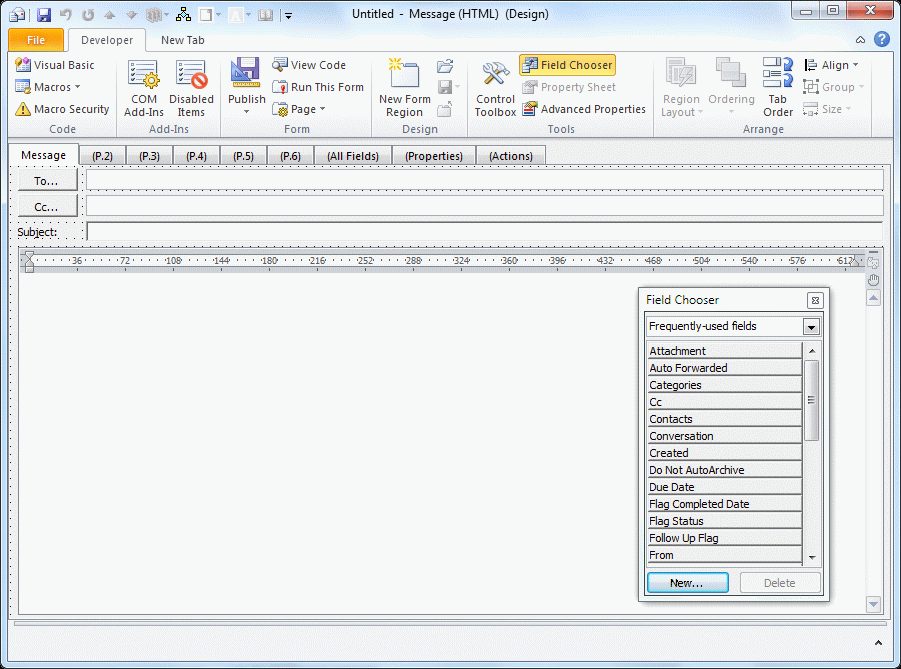
In Outlook 2007 and Outlook 2010, you need to show the Developer ribbon before you can open the form in design mode.
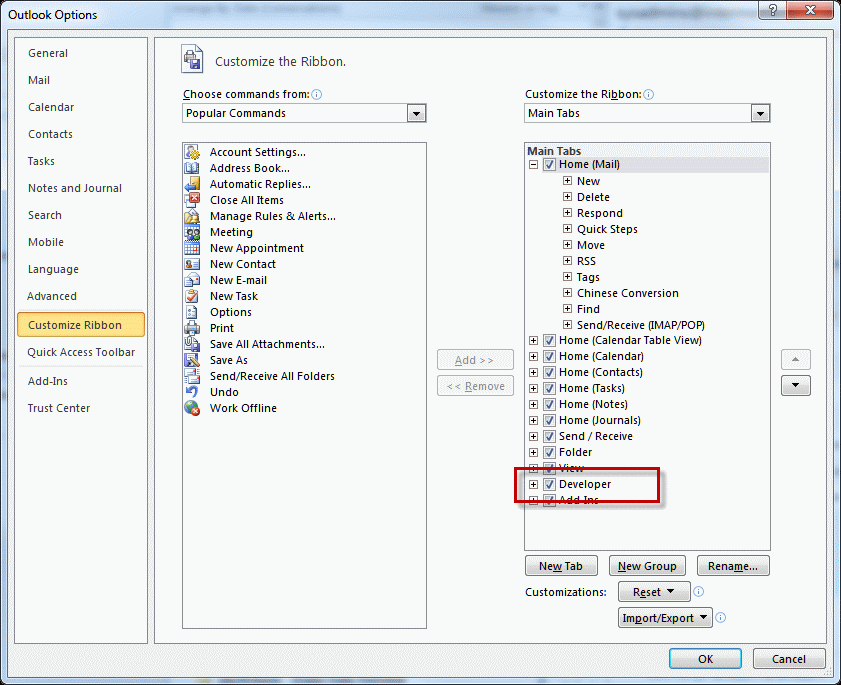
Outlook 2010: go to File, Options, Customize Ribbon and add a check to the Developer ribbon in the right pane.
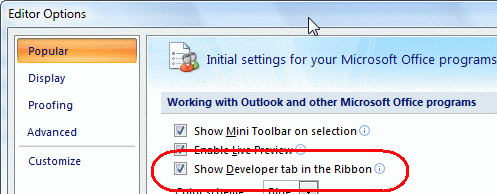
Outlook 2007: open the Office menu and go to Editor options. Show the Developer tab is on the first page.
(A video tutorial is here, if you need one: Enable the Developer ribbon)
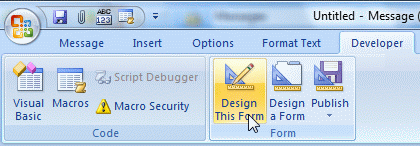
Open the form you want to edit and choose Design this form from the Developer tab or Tools, Forms menu. You can browse for a form using Design a Form if the type you want to edit is not open.
Outlook 2007 and Outlook 2010:
Outlook 2003 and earlier:

You can change the value of many, but not all, fields.
Notes:
- First page of appointment form is not editable.
- The first page of Contacts in Outlook 2003/2007 is the old contacts form if edited.
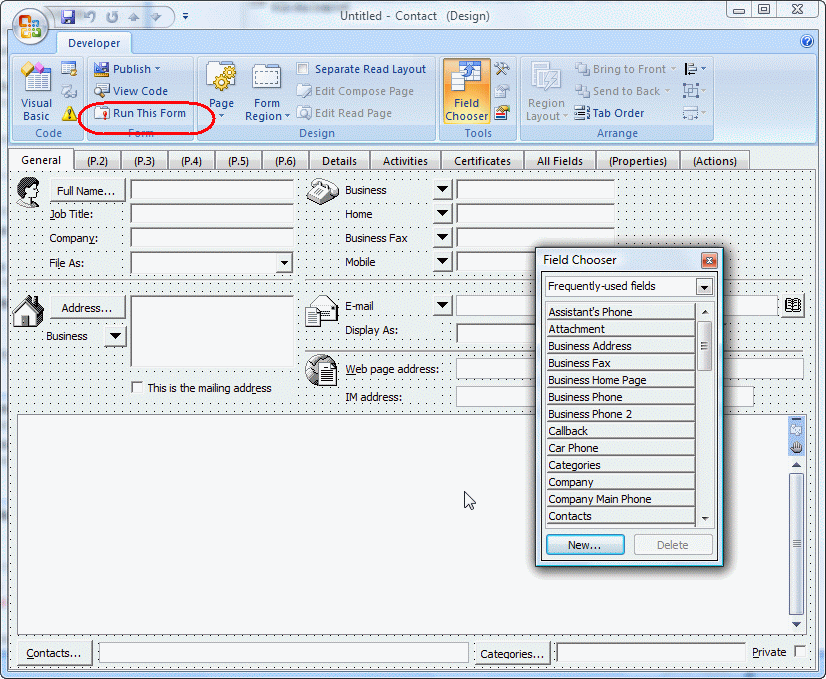
- Use Run Now to test the form.
What fields can you change? The default address (Home instead of Business), the default business card design, Default Show time as, assign a default category, make all appointments or contacts private, and many others fields. Not all fields can be saved, including the default reminder time or All Day appointments.
You can show a persons age on a custom form or add a date stamp.
See Publishing Custom Forms for help publishing forms and converting existing items to use the new form. Many forms will also work as templates, saved using the File, Save as menu. You can save templates anywhere on your drive (so its easier to find them) or copy them to a folder in Outlook.
We have some ready-to-use sample forms here:
- Display the Age of a Contact
- How to add a date stamp to the notes field in Microsoft Outlook appointments or contacts
To change existing items so they use the new form, you'll need to change the message class on the items. The easiest way to do this is using DocMessageClass. It's a free utility from the folks at Publicshareware.
Published May 14, 2011. Last updated on June 16, 2017.