![Diane Poremsky [Outlook MVP]](http://www.outlook-tips.net/images/2014/MVP_BlueOnly.png)
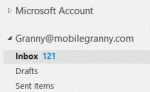 Microsoft made it hard to rename accounts in Outlook 2013. In older versions of Outlook it was easy: Data File names could be changed in the data file's Properties dialog.
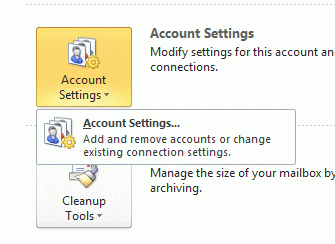
This works in Outlook 2013 only with POP3 or Personal Folder files. For IMAP and EAS accounts you need to open "Account Properties" from the Send/Receive Groups dialog, which is just the More Settings dialog, accessed a different, more convoluted way. (Exchange accounts can't be renamed easily.)
It gets better: once you edit an IMAP account name, the General tab is displayed when you access it from More Settings.
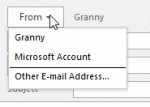 When you change make this change for EAS and IMAP accounts, both the account name (seen in the From field or in the Account Settings dialog) and the data file name are changed.
To change the name of a POP3 account (as seen this the From drop down), you need to open Account Settings, double click on the account then click More Settings button and change the account name in the Internet E-Mail Settings dialog. This does not change the folder name in the navigation pane.

Once IMAP account names are changed, edits can be made by going though File, Account Settings, More Settings.
POP3 and Personal Folders data file names
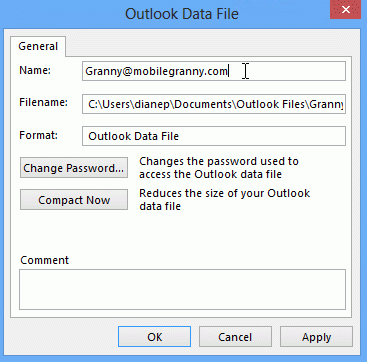
If you are using a POP3 account or personal folders (*.pst), you can change the name that displays in the folder list and navigation pane using this method:
- Right-click on the data file name you want to change and choose Data File Properties (Properties in older versions of Outlook).
- Click the Advanced button on the Properties dialog
- Change the names in the in the Data File Dialog
Outlook.com (EAS) and IMAP accounts
Use this method to change the account name for EAS accounts and IMAP accounts.
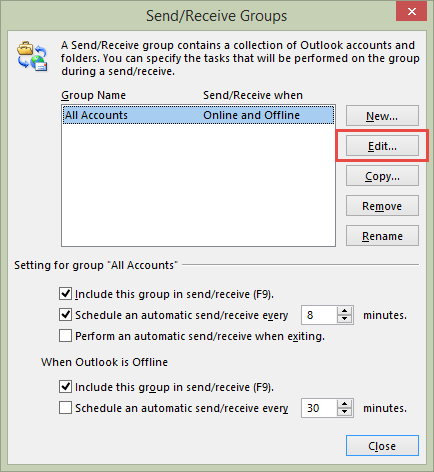
- Open the Send/Receive Groups dialog using Ctrl+Alt+S.
- Click Edit…
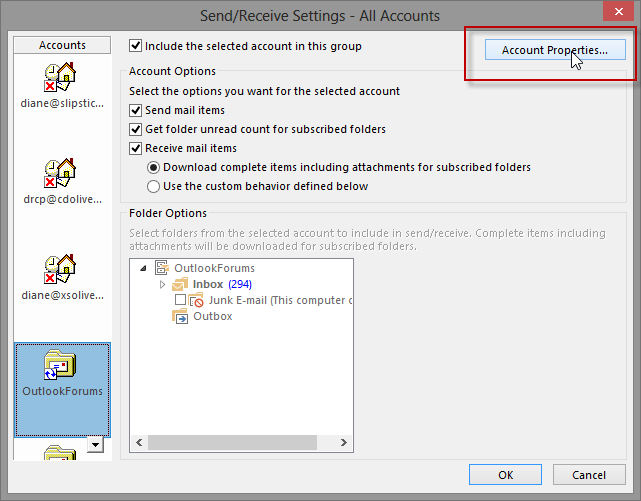
- Select the account you want to change
- Click the Account Properties button
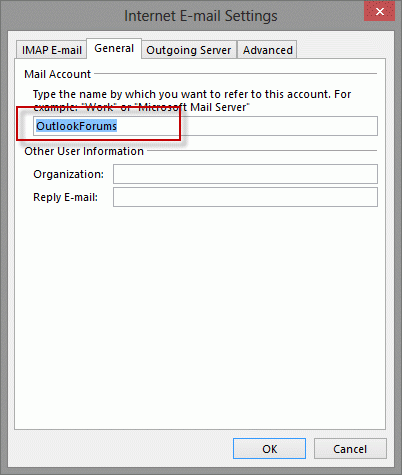
- Change the Mail Account name on the General Tab
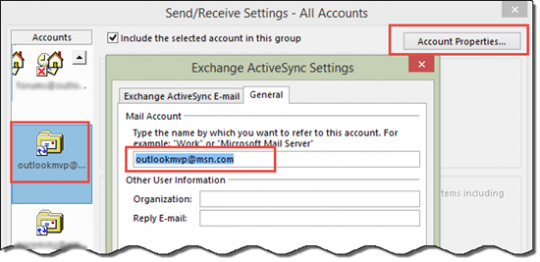
This is a screenshot from an Outlook.com email account (configured as an Outlook.com/EAS account.)
Video Tutorial
Published January 21, 2013. Last updated on July 26, 2014.