![Diane Poremsky [Outlook MVP]](http://www.outlook-tips.net/images/2014/MVP_BlueOnly.png)
A reader asks:
“I use Outlook 2003 and want my appointments to display the Start and End time of each appt, next to the title of each appointment, while I am in Work Week view.
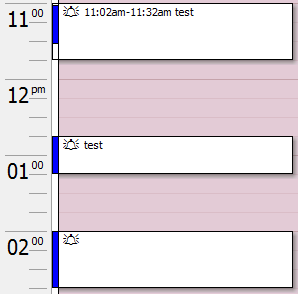
Outlook does what I want it to if I create an appointment that starts/ends at an atypical time. For example if I make an appt named Default Appt it will be displayed as a block that says "10:01am-11:01am Default Appt". However, if I create the appointment using a typical time (ex: 10:00am-11:00am), the title of the appointment in Work Week view only says "Default Appt" without displaying the start/end time of the appointment. I want all appointments to show the time”
Unfortunately, this is not possible. The only way to see the times that fit within the normal time scales is in the Week (planner-style) view (only in Outlook 2003 and older), not the Day or Work week view.
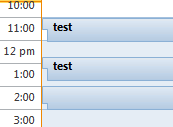 This does not apply to Outlook 2007 or Outlook 2010. The start and end times will not show on the day or week view, regardless of your time scale.
You are expected to use the time scale and the little 'panhandle' to determine the appointment time. (Yes, it's stupid. I don't like it either.)
Note that if the appointment splits a time period, such as if the length is not a multiple of the time scale you are using or the start and end times don't fit nicely within the chosen scale, the times will show.
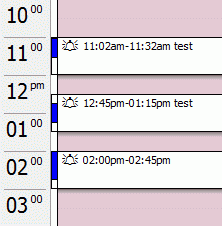 For example, if you use 1 hr scale and have a 30 min appointment, it shows the times, but not if you use the 6 min scale (because 30 is a multiple of 6).
A 30 minute appointment that starts at 12:45 will show the start and end times using the 30 min scale, but not on a 15 minute scale.
A 45 minute appointment shows the times if you use the 6, 10, 30 or 60 scale but not the 5 or 15 min scales.
Published June 10, 2009. Last updated on September 19, 2013.